

Training 4: Back Up Your Data
Key points
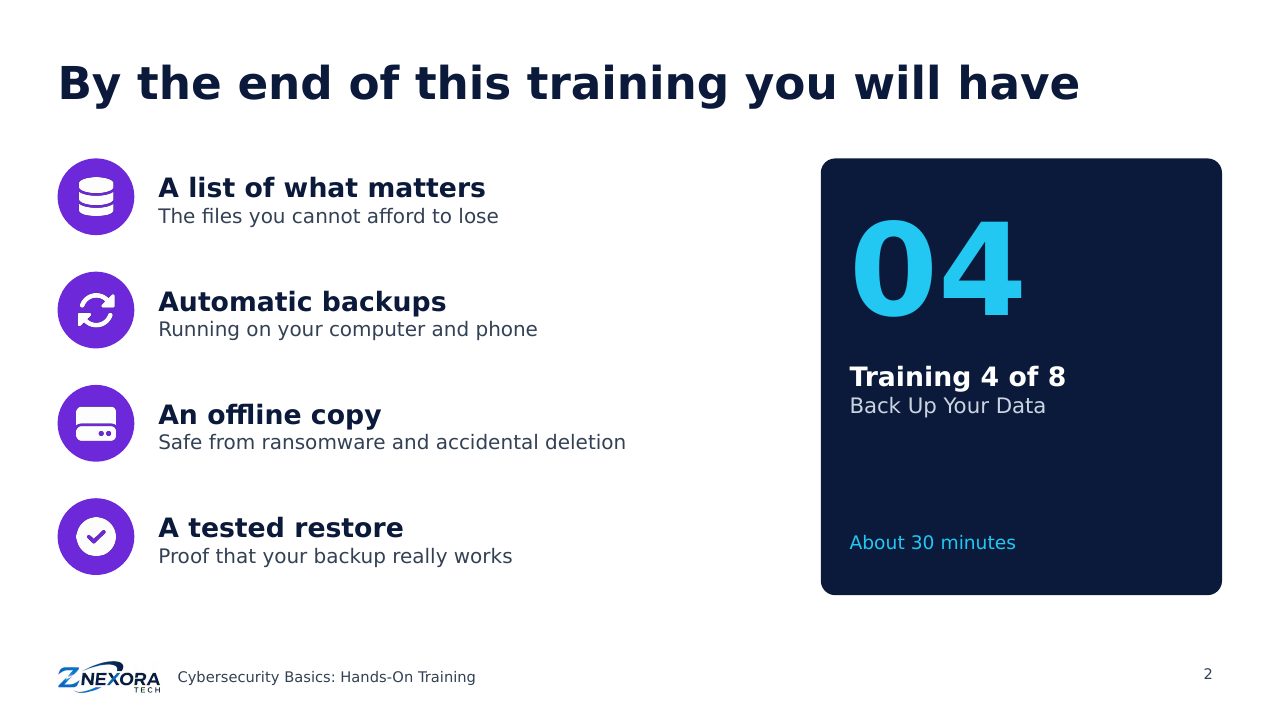
Hands-on: decide what to back up, set up 3-2-1 backups on Windows, Mac and phones, keep one copy offline, and test that you can actually restore your files.
Hands-on training · Cybersecurity Basics: Hands-On Training · Training 4 of 8 · About 30 minutes
Backups turn a disaster into an inconvenience. When ransomware, a broken drive or a lost phone strikes, the people with tested backups recover in hours; the people without them can lose everything. In this training you will set up backups using the 3-2-1 rule and prove they work.
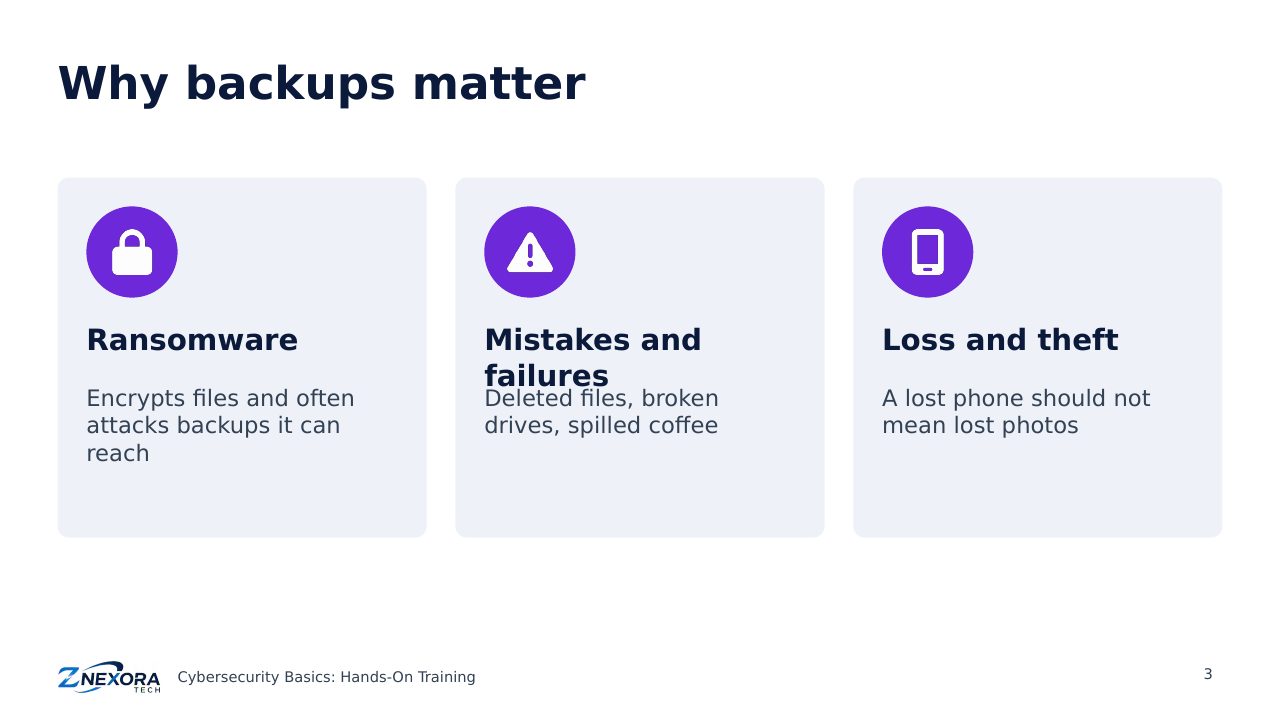
Why backups matter
- Ransomware encrypts files and often attacks any backups it can reach. In Japan’s October 2026 attacks, backups on the same systems were encrypted too.
- Mistakes and failures: deleted files, broken drives and accidents happen to everyone.
- Loss and theft: a lost phone should not mean lost photos.
Step 1: Decide what to back up
List the data you cannot afford to lose: documents, photos and videos, work files, tax and financial records, and anything you cannot download again. Apps and the operating system can usually be reinstalled; your own files cannot.
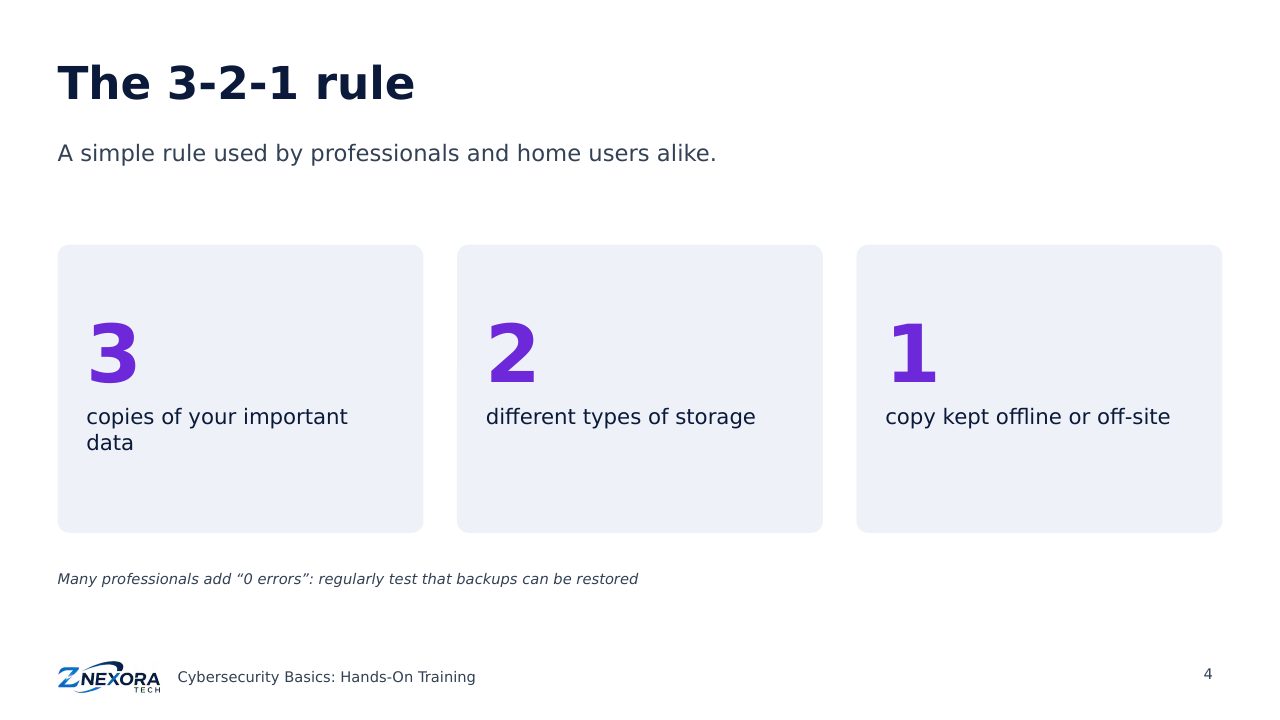
The 3-2-1 rule
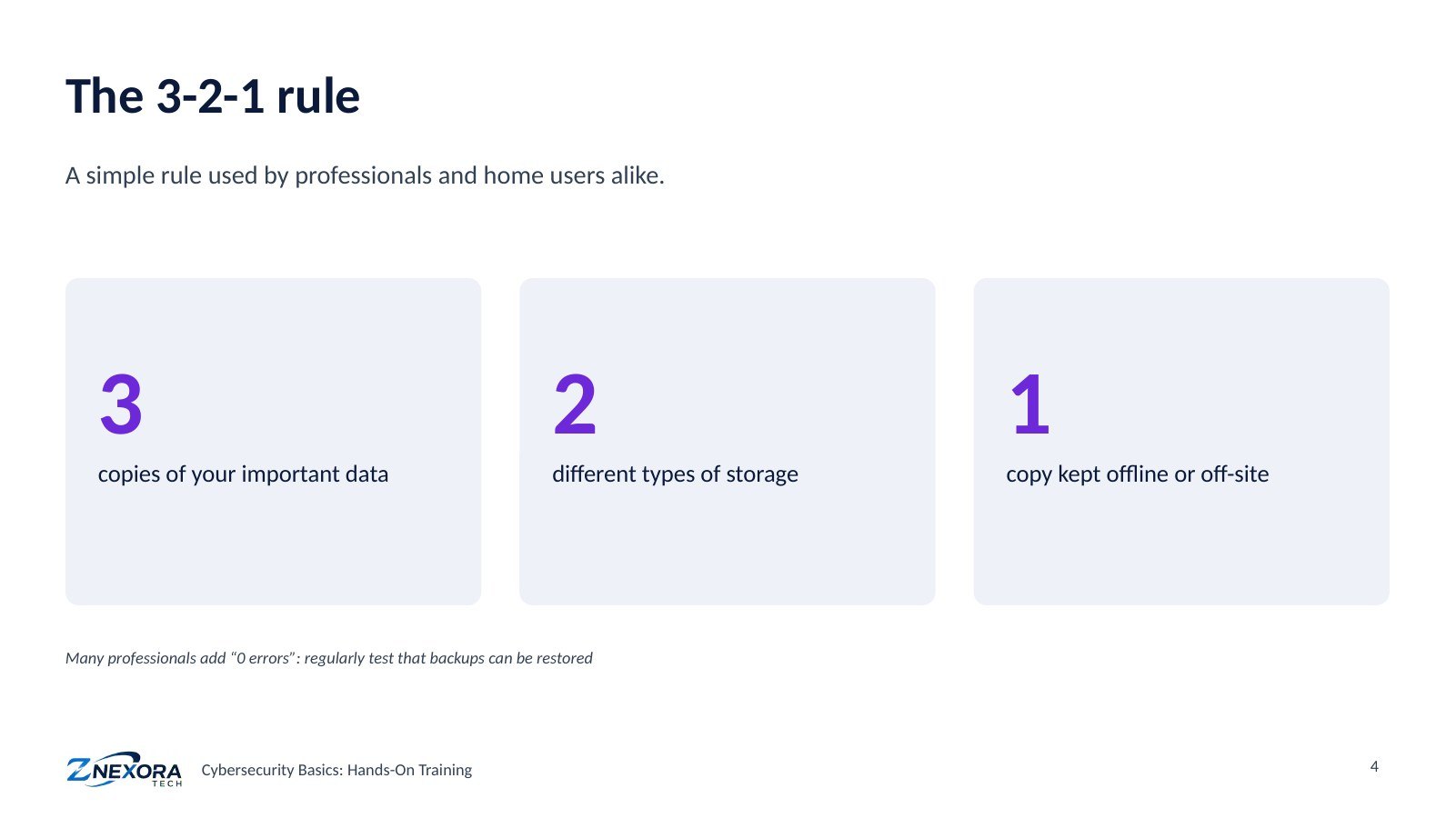
- 3 copies of your important data: the original plus two backups.
- 2 different types of storage, for example a cloud service and an external drive.
- 1 copy offline or off-site, out of reach of ransomware, fire or theft.
Many professionals add “0 errors”: regularly test that backups can actually be restored.
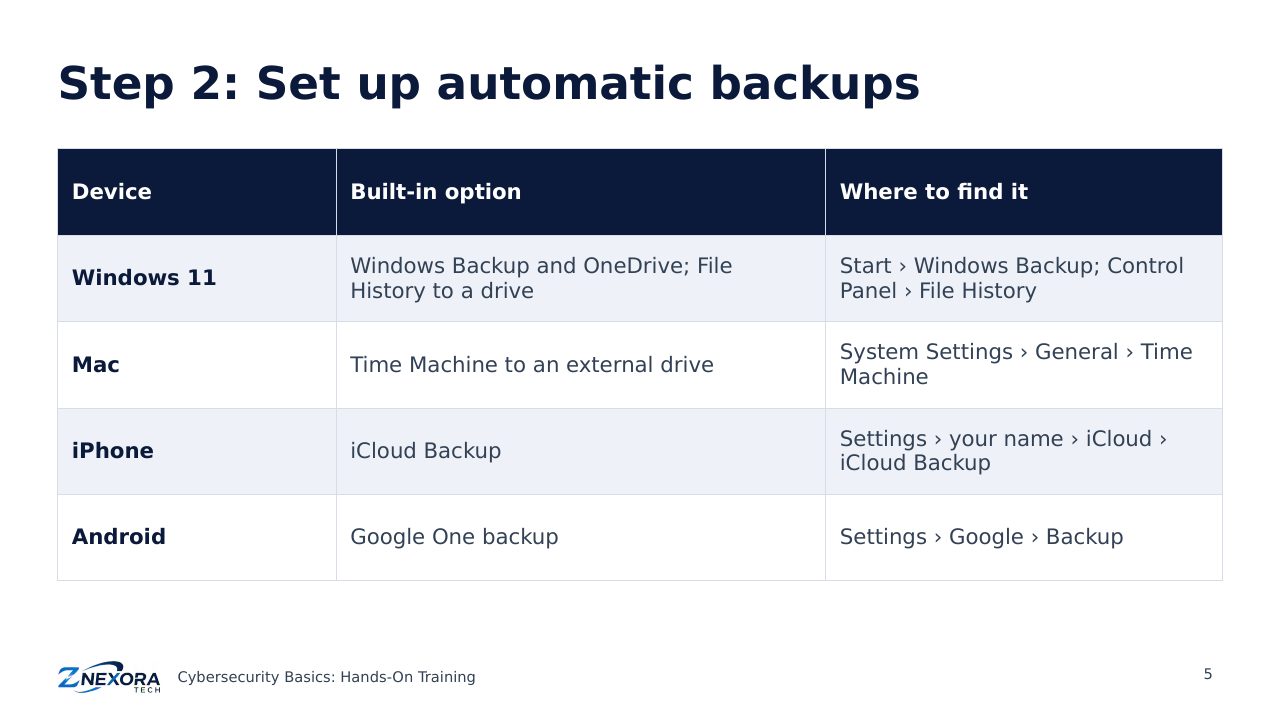
Step 2: Set up automatic backups
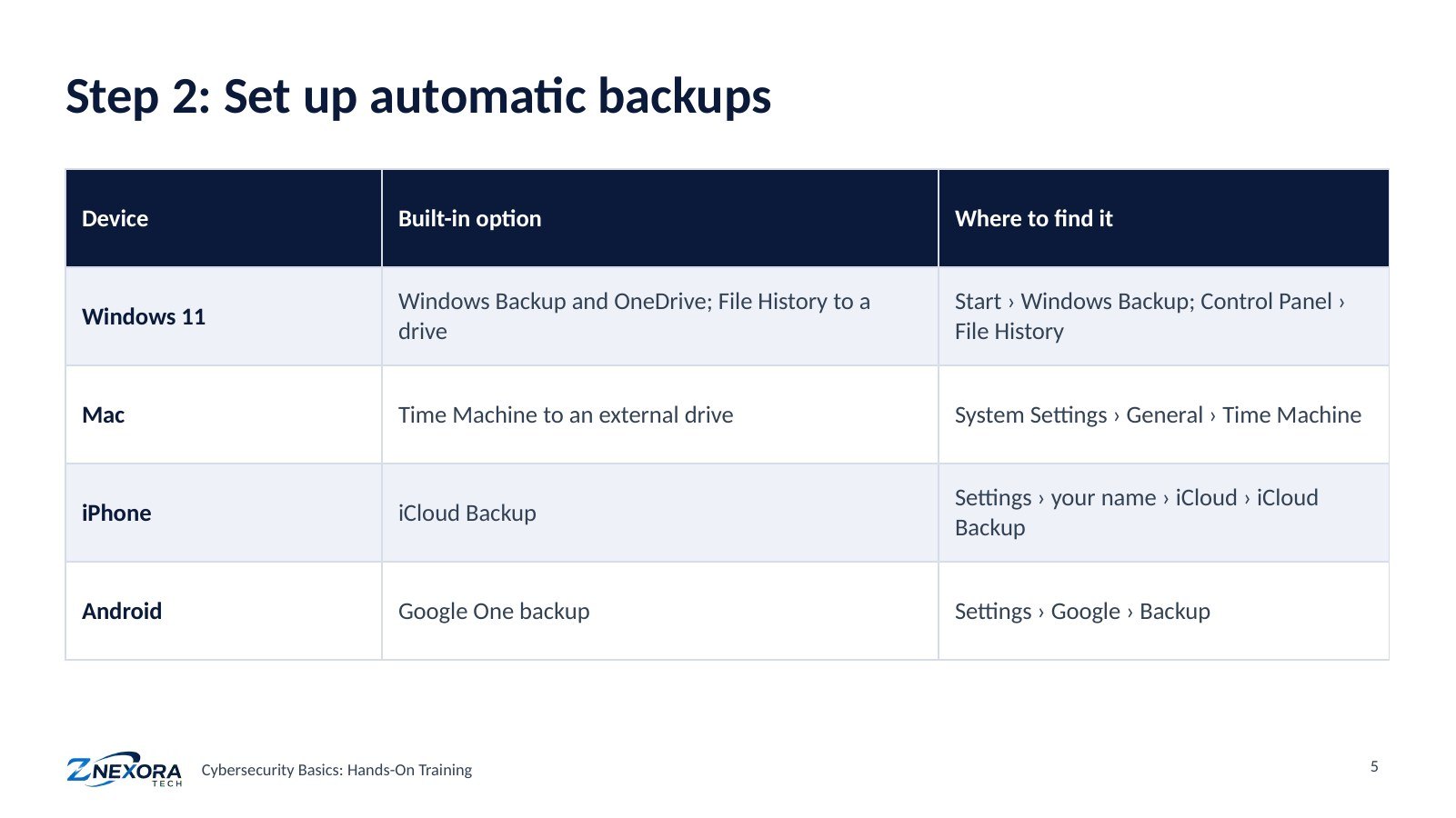
- Windows 11: open Windows Backup from the Start menu to back up folders to OneDrive, and use File History (Control Panel › File History) to back up to an external drive.
- Mac: connect an external drive and turn on Time Machine in System Settings › General › Time Machine.
- iPhone: turn on iCloud Backup in Settings › your name › iCloud › iCloud Backup.
- Android: turn on Google One backup in Settings › Google › Backup (names vary by phone maker).
Cloud services have free storage limits; you may need a small paid plan for all your photos and files.
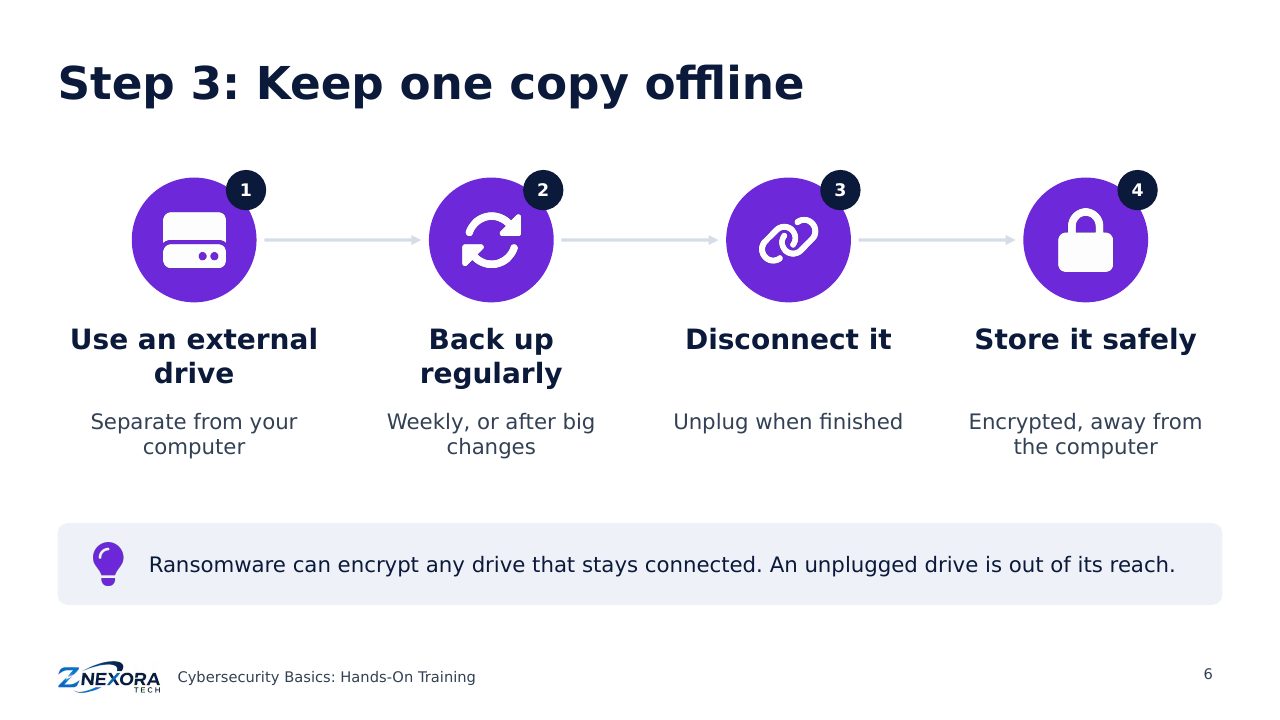
Step 3: Keep one copy offline
- Use an external drive dedicated to backups.
- Back up regularly, weekly or after important changes.
- Disconnect it when the backup finishes.
- Store it safely: encrypted (BitLocker To Go on Windows, or the encryption option in Time Machine on a Mac), and kept away from the computer.
Ransomware can encrypt any drive that stays connected. An unplugged drive is out of its reach.
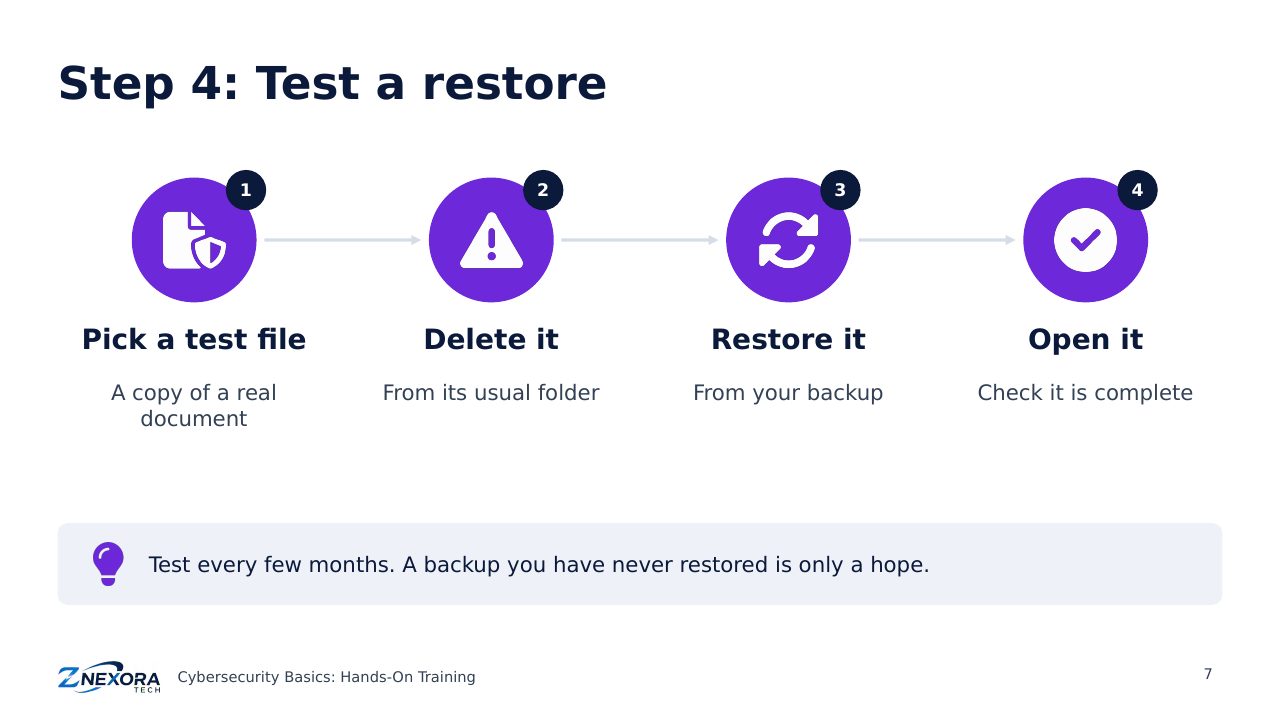
Step 4: Test a restore
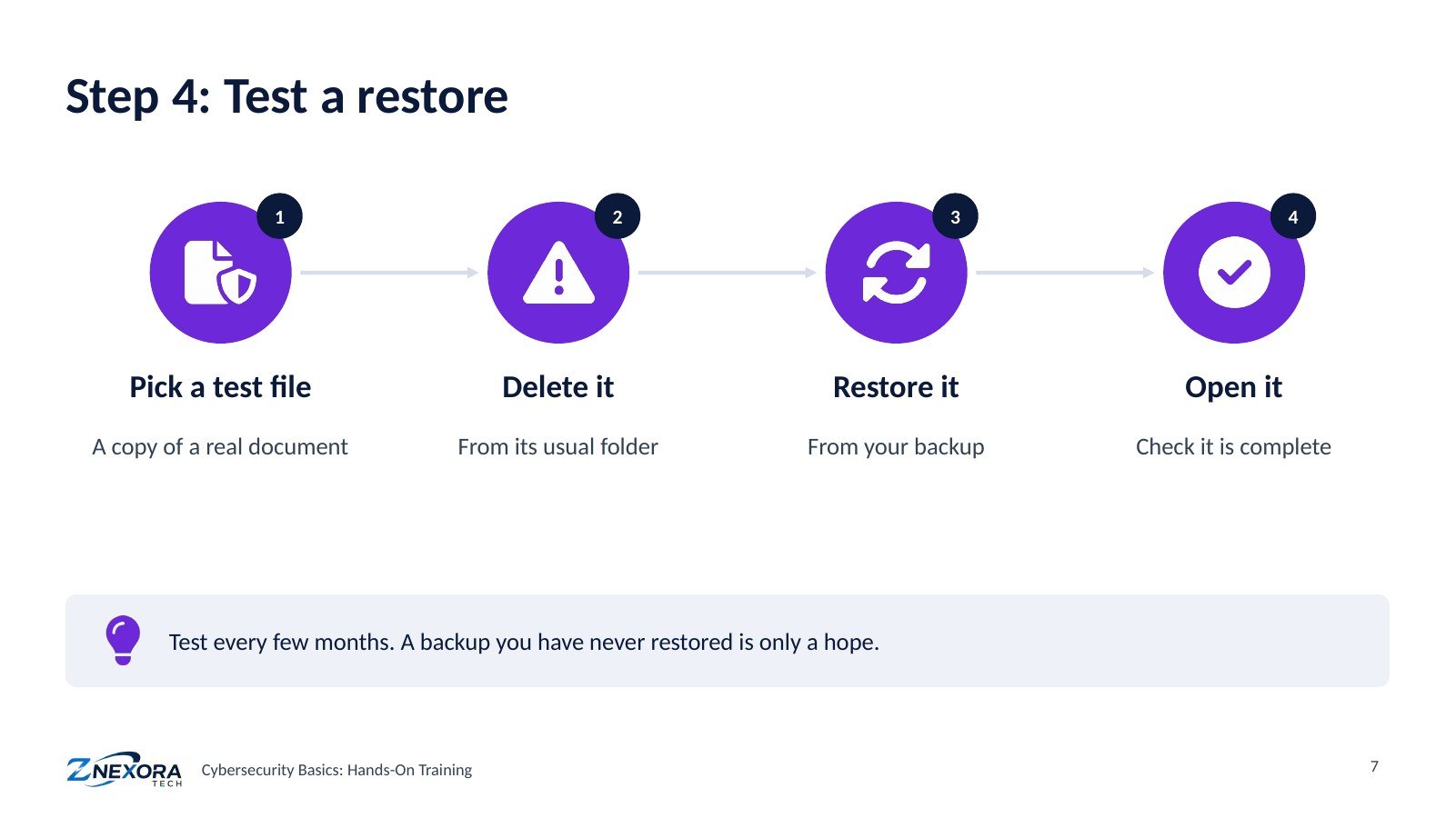
- Pick a test file: make a copy of a real document.
- Delete the copy from its usual folder.
- Restore it from your backup.
- Open it and check it is complete.
Repeat this every few months. A backup you have never restored is only a hope.
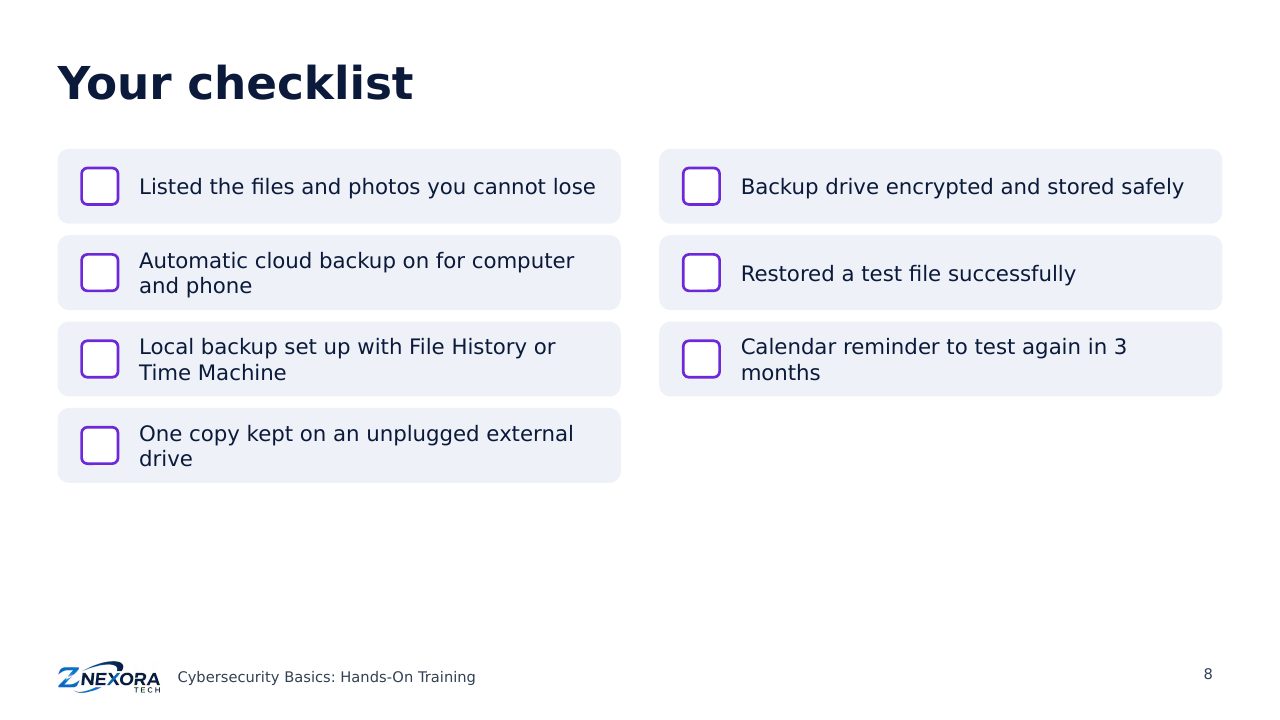
Your checklist
☐ Listed the files and photos you cannot lose
☐ Automatic cloud backup on for computer and phone
☐ Local backup set up with File History or Time Machine
☐ One copy kept on an unplugged external drive
☐ Backup drive encrypted and stored safely
☐ Restored a test file successfully
☐ Calendar reminder to test again in 3 months
Check your work
- What do the numbers in the 3-2-1 rule stand for?
- Why should one backup copy be kept offline?
- How do you know your backup actually works?
Answers: 1. Three copies, on two types of storage, with one offline or off-site. 2. Because ransomware can encrypt any connected drive, including backups. 3. By regularly restoring a test file and checking it opens correctly.
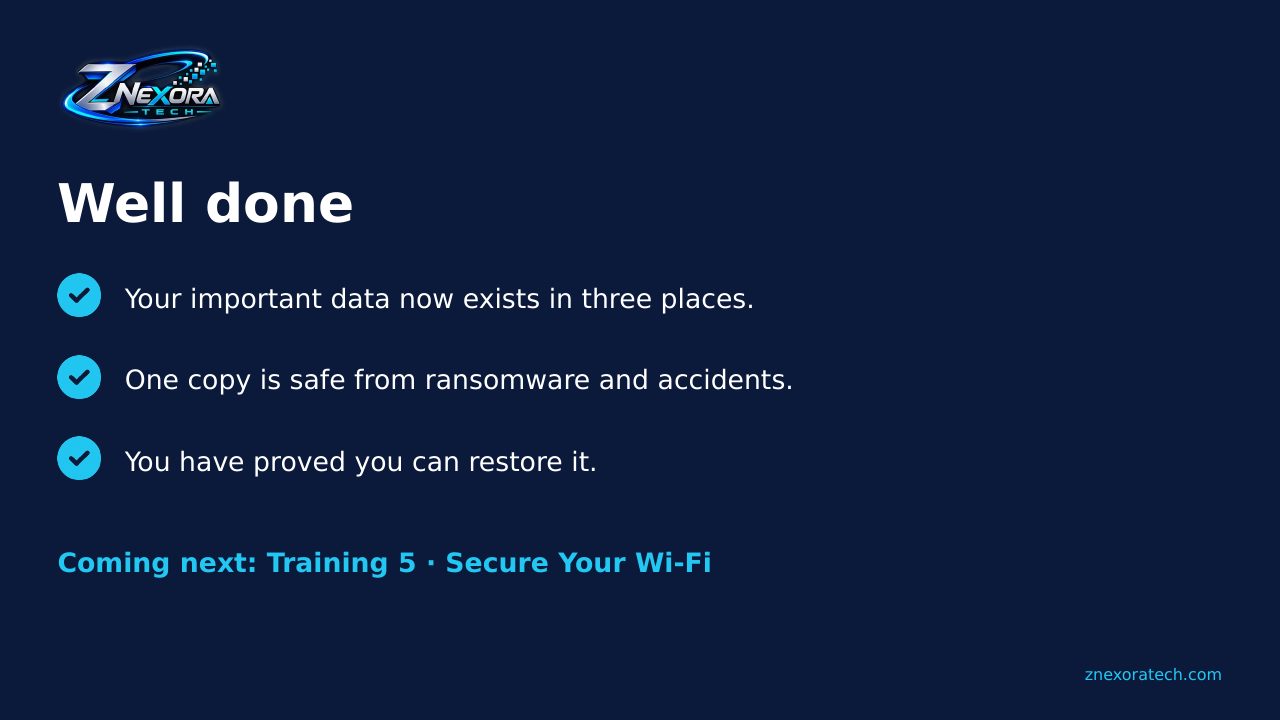
Coming next: Training 5 · Secure Your Wi-Fi. Router settings, Wi-Fi encryption and guest networks for home and small offices.
Slides
Thank you for reading!
Let’s continue to build a safer and more trustworthy digital future together.
Follow ZNexora Tech
Stay curious. Stay secure. Stay ahead.