

Training 2: Secure Your Devices
Key points
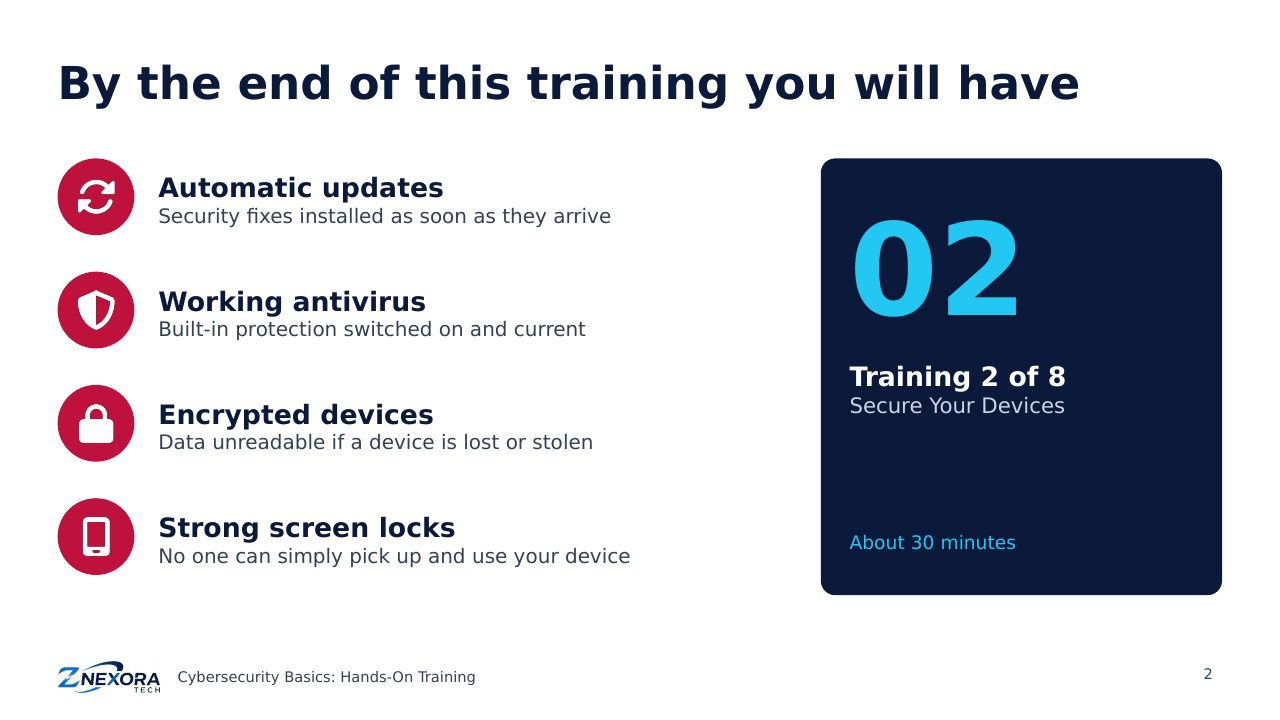
Hands-on: turn on automatic updates, check your antivirus, encrypt your devices and set strong screen locks on Windows, Mac, iPhone and Android.
Hands-on training · Cybersecurity Basics: Hands-On Training · Training 2 of 8 · About 30 minutes
Your devices hold your email, photos, banking apps and work files. In this training you will make sure every computer and phone installs security updates automatically, runs working antivirus, encrypts its data and locks itself when you are away.
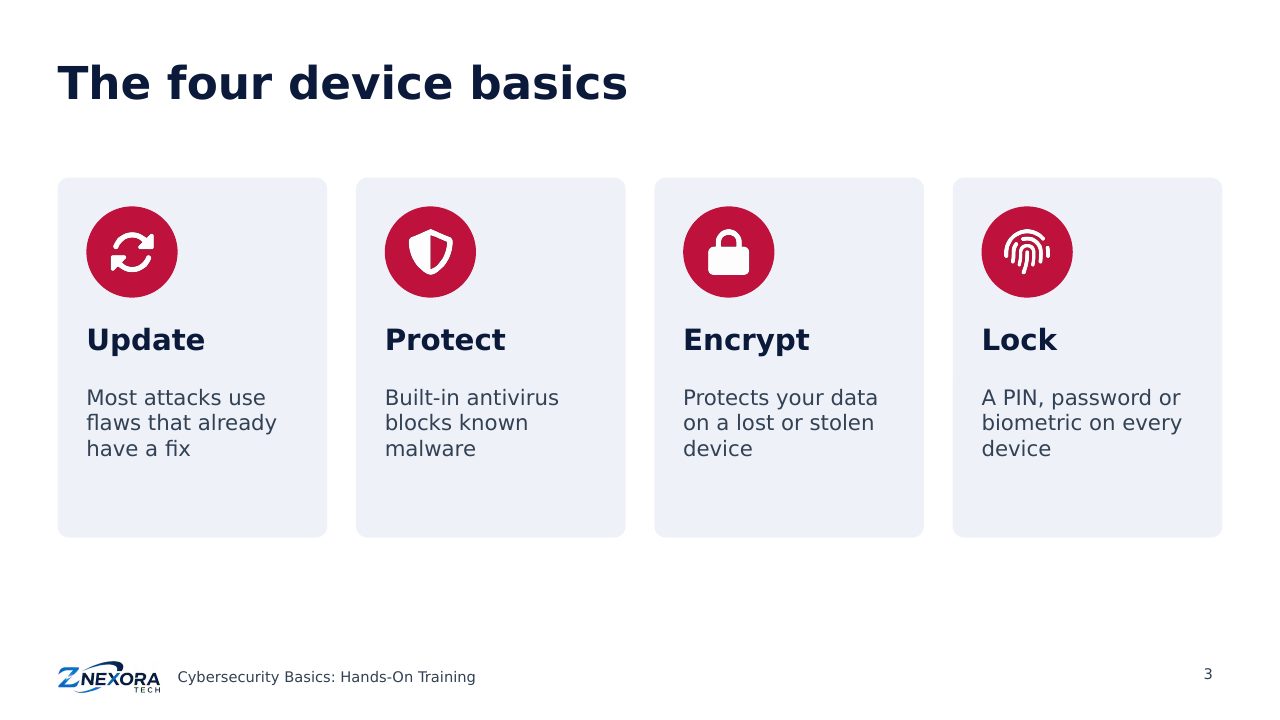
The four device basics
- Update: most attacks use flaws that already have a fix.
- Protect: built-in antivirus blocks known malware.
- Encrypt: protects your data if a device is lost or stolen.
- Lock: a PIN, password or biometric on every device.
Menu names change between versions. If a path below does not match your device exactly, search the Settings app for the key word, such as “update” or “encryption”.
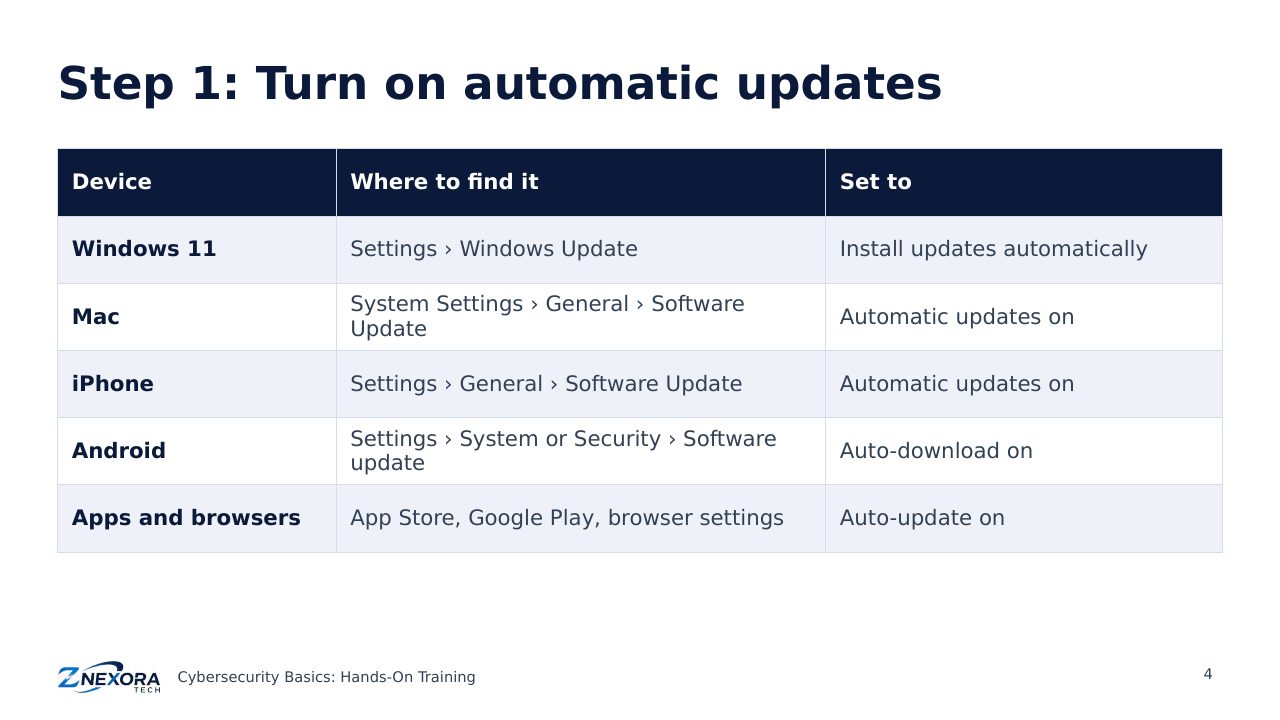
Step 1: Turn on automatic updates
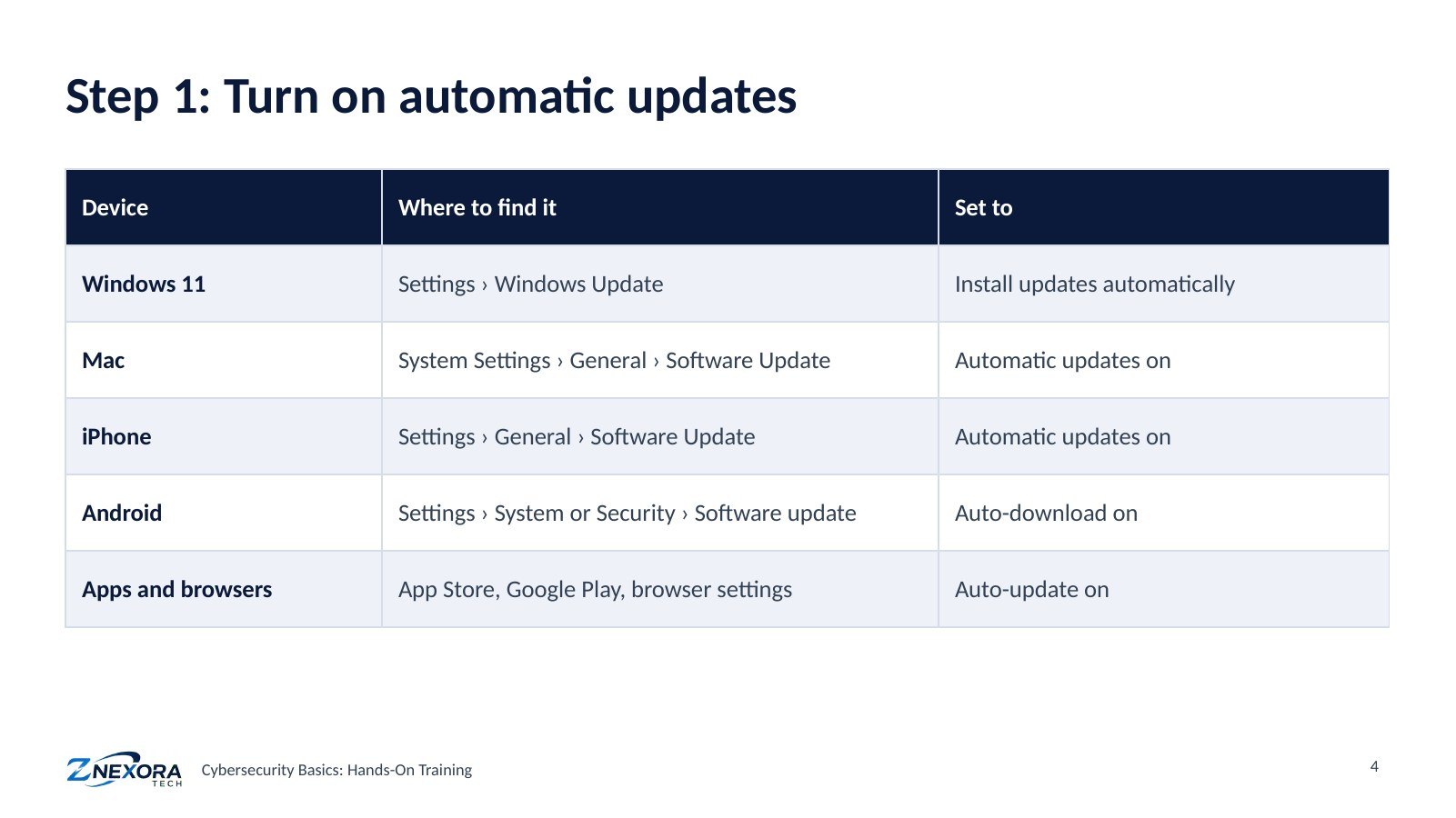
- Windows 11: Settings › Windows Update. Install pending updates and keep automatic updates on.
- Mac: System Settings › General › Software Update. Turn on automatic updates.
- iPhone: Settings › General › Software Update › Automatic Updates. Turn them on.
- Android: Settings › System (or Security) › Software update. Turn on automatic download.
- Apps and browsers: turn on auto-update in the App Store, Google Play and your browser.
Restart after updating: many security fixes only take effect after a restart.
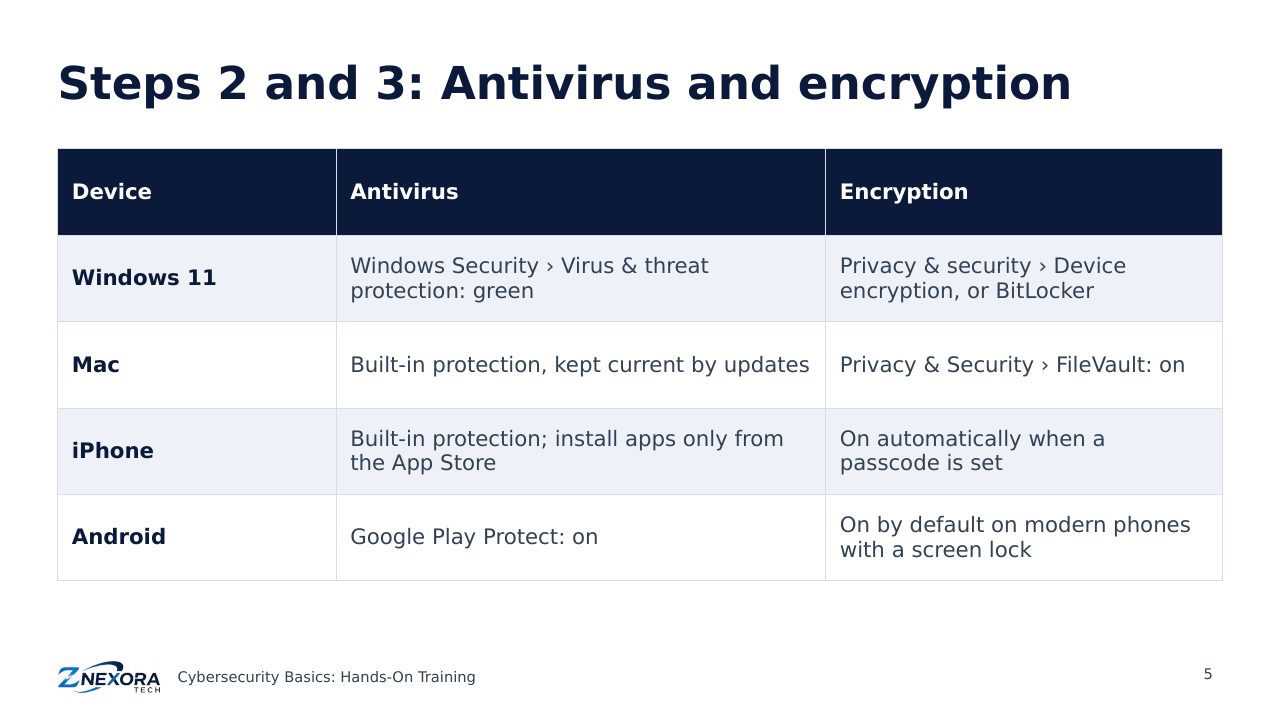
Steps 2 and 3: Antivirus and encryption
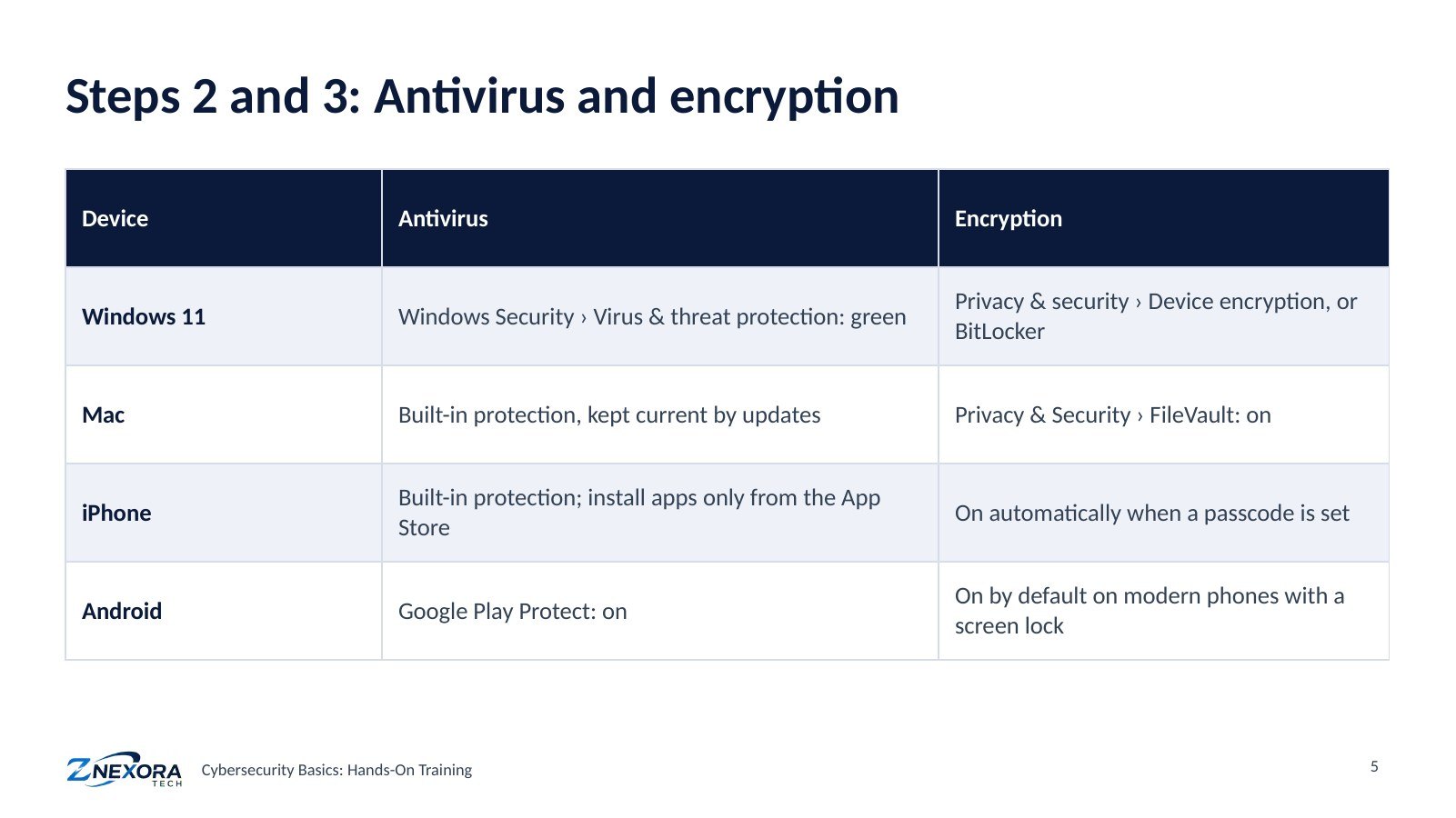
- Windows 11: open Windows Security › Virus & threat protection and check everything is green. For encryption, look for Settings › Privacy & security › Device encryption; on Windows Pro editions, use BitLocker. Save the recovery key in your Microsoft account or another safe place.
- Mac: built-in malware protection is kept current through updates. Turn on FileVault in System Settings › Privacy & Security.
- iPhone: built-in protection; install apps only from the App Store. Data encryption is switched on automatically when you set a passcode.
- Android: check Google Play Protect is on in the Play Store. Modern Android phones encrypt data by default once a screen lock is set.
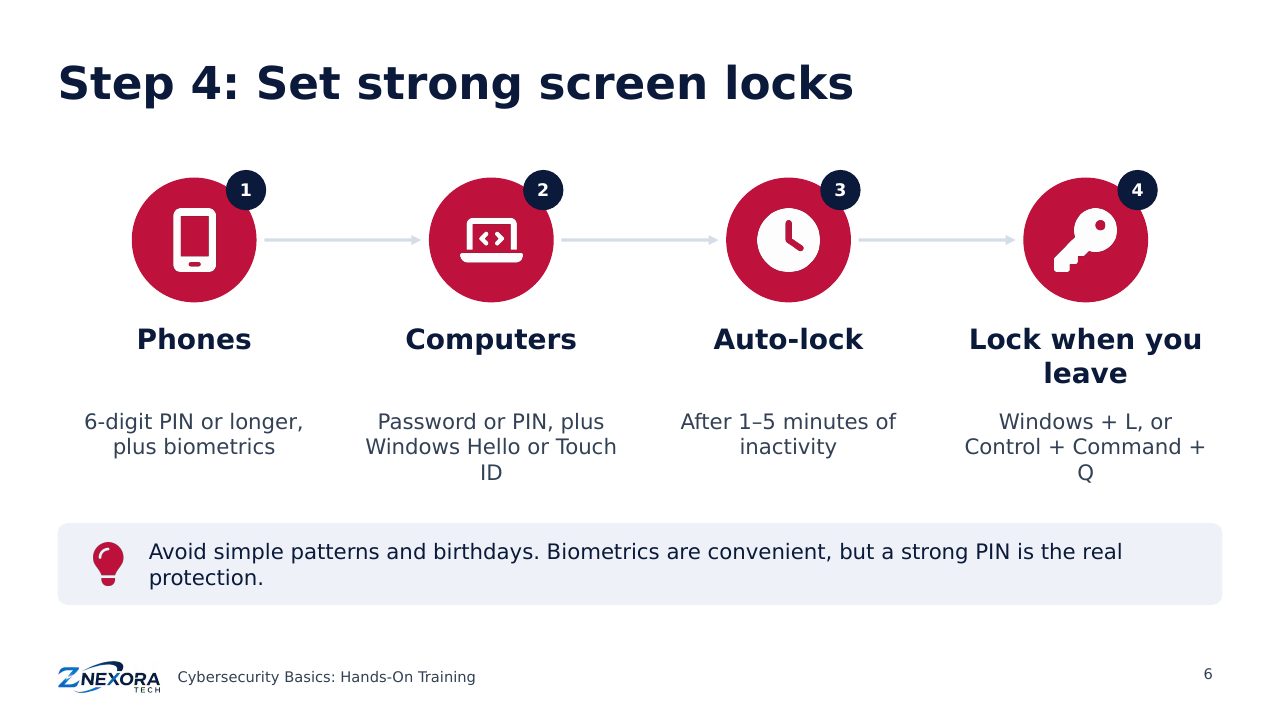
Step 4: Set strong screen locks
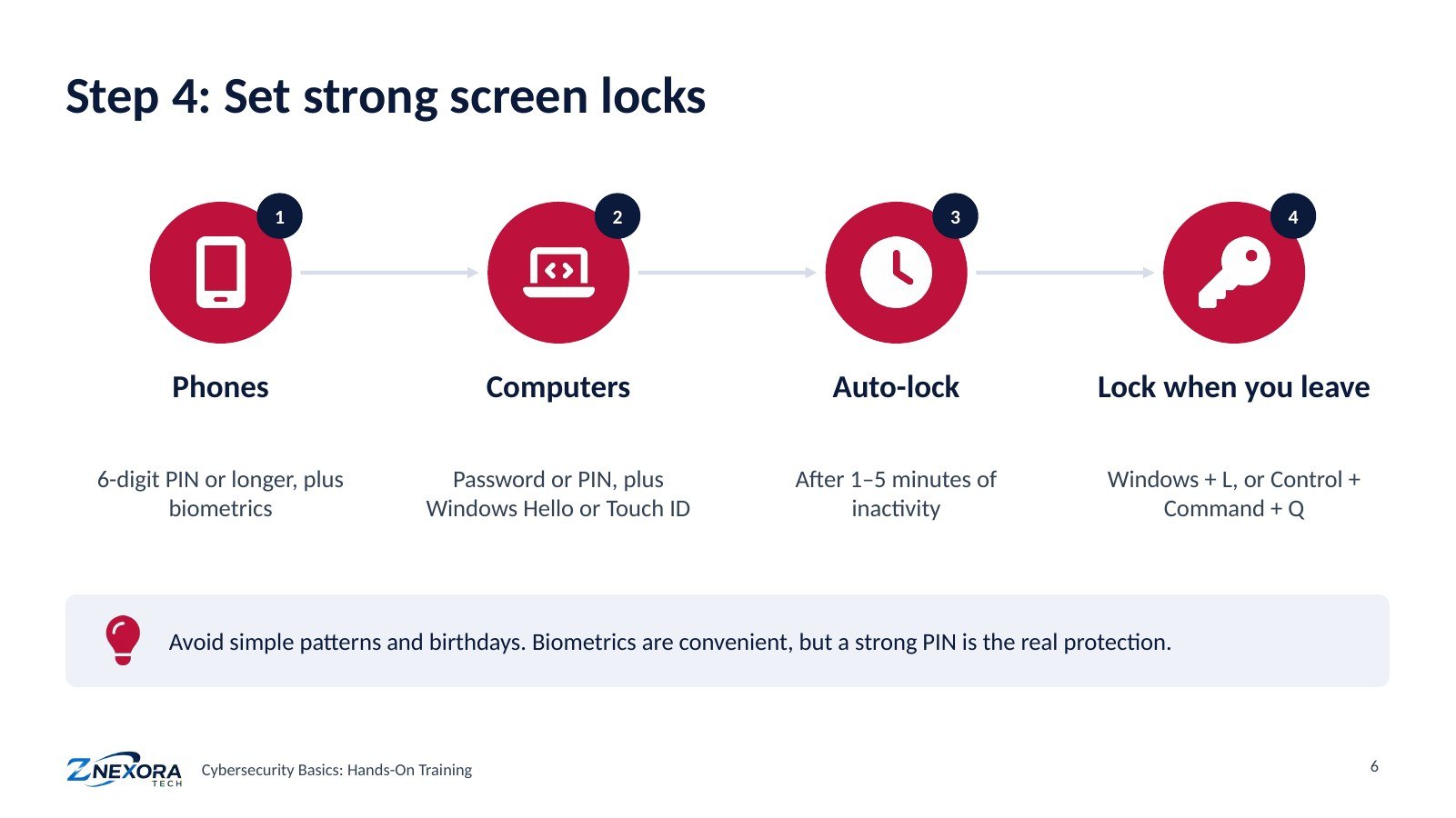
- Phones: use a PIN of six digits or more, plus fingerprint or face unlock for convenience.
- Computers: use a password or PIN, plus Windows Hello or Touch ID if available.
- Auto-lock: set screens to lock after one to five minutes of inactivity.
- Lock when you leave: press Windows + L on Windows, or Control + Command + Q on a Mac.
Avoid simple patterns and birthdays. Biometrics are convenient, but a strong PIN is the real protection behind them.
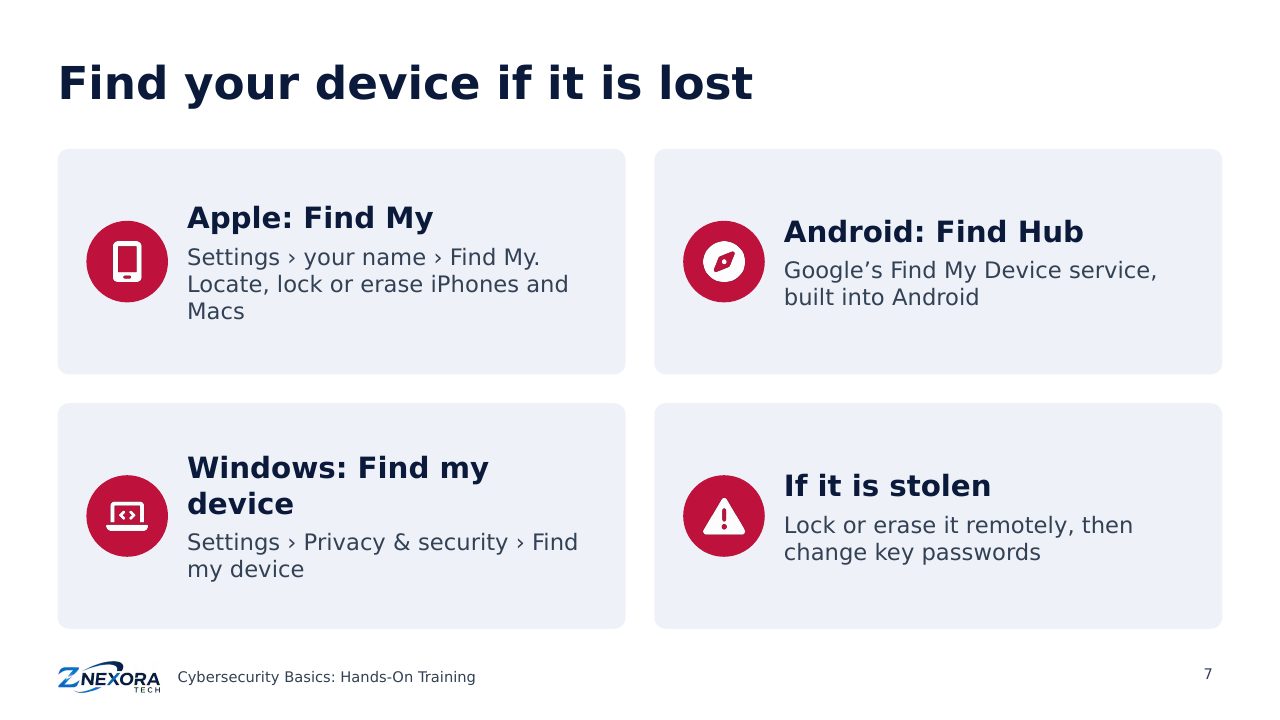
Find your device if it is lost
- Apple: turn on Find My (Settings › your name › Find My) to locate, lock or erase iPhones and Macs.
- Android: Google’s Find Hub (formerly Find My Device) is built in; make sure it is on.
- Windows: Settings › Privacy & security › Find my device.
- If a device is stolen: lock or erase it remotely, then change the passwords for your email and bank accounts.
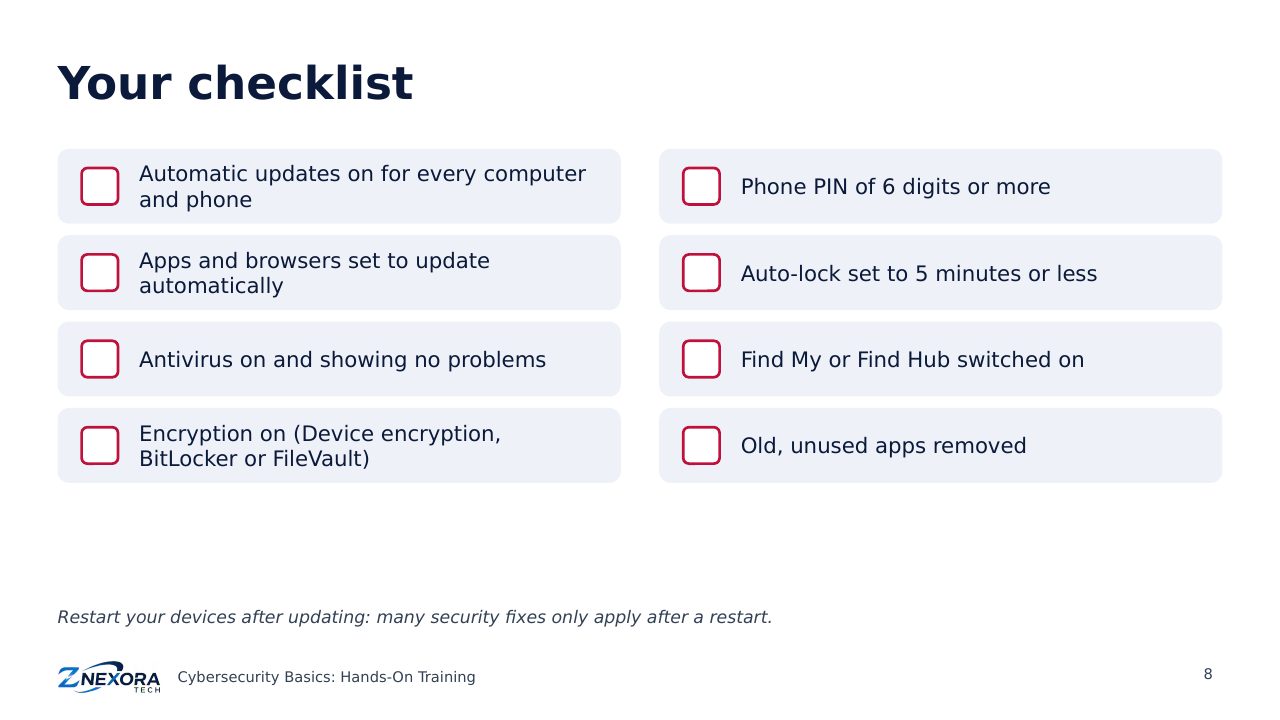
Your checklist
☐ Automatic updates on for every computer and phone
☐ Apps and browsers set to update automatically
☐ Antivirus on and showing no problems
☐ Encryption on (Device encryption, BitLocker or FileVault)
☐ Phone PIN of 6 digits or more
☐ Auto-lock set to 5 minutes or less
☐ Find My or Find Hub switched on
☐ Old, unused apps removed
Check your work
- Why are automatic updates the single most important device setting?
- What does encryption protect against?
- What should you do first if your phone is stolen?
Answers: 1. Because most attacks exploit known flaws that updates already fix. 2. Someone reading your data from a lost or stolen device. 3. Lock or erase it remotely using Find My or Find Hub, then change your key passwords.
Next: Training 3 · Spot and Report Phishing. Check a suspicious email step by step and report it.
Slides
Thank you for reading!
Let’s continue to build a safer and more trustworthy digital future together.
Follow ZNexora Tech
Stay curious. Stay secure. Stay ahead.