
Training 1: Secure Your Accounts
Key points
Hands-on: check whether your email appears in known breaches, set up a password manager, replace weak passwords and turn on multi-factor authentication.
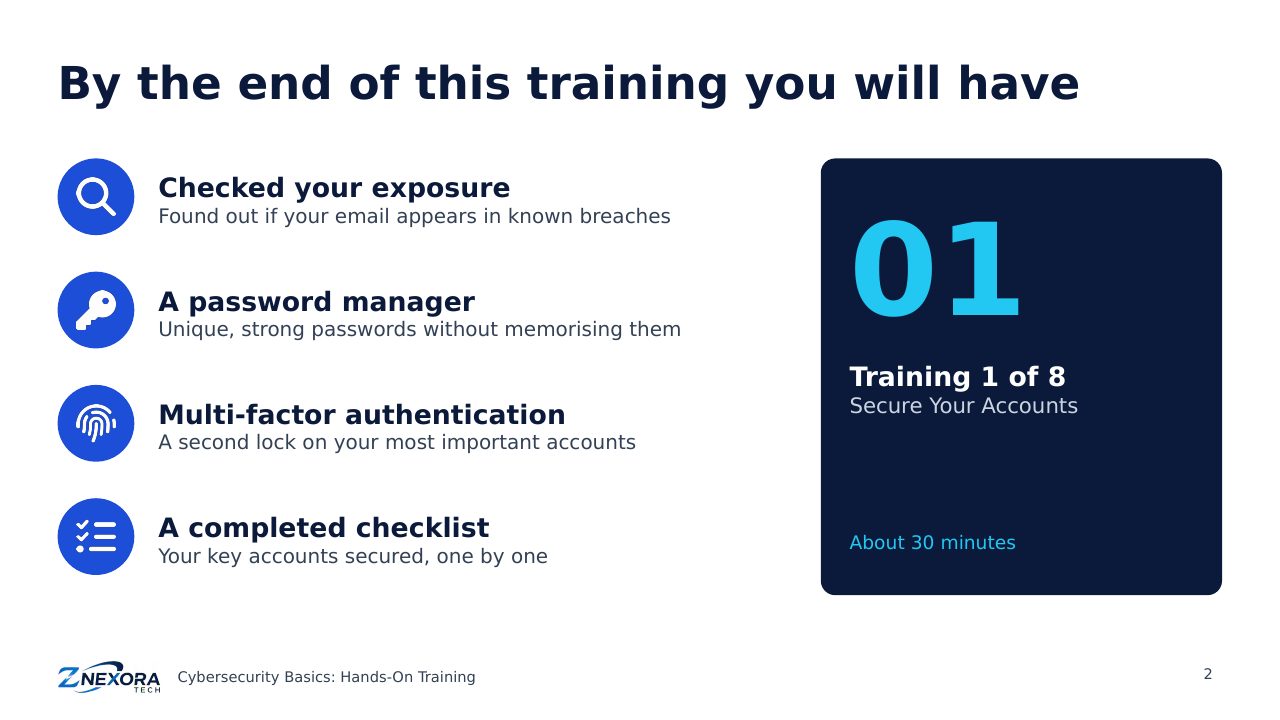
Hands-on training · Cybersecurity Basics: Hands-On Training · Training 1 of 8 · About 30 minutes
Most account takeovers happen through reused or stolen passwords. In this training you will check whether your email address appears in known data breaches, set up a password manager, replace weak passwords, and turn on multi-factor authentication (MFA) for your most important accounts.
Before you start
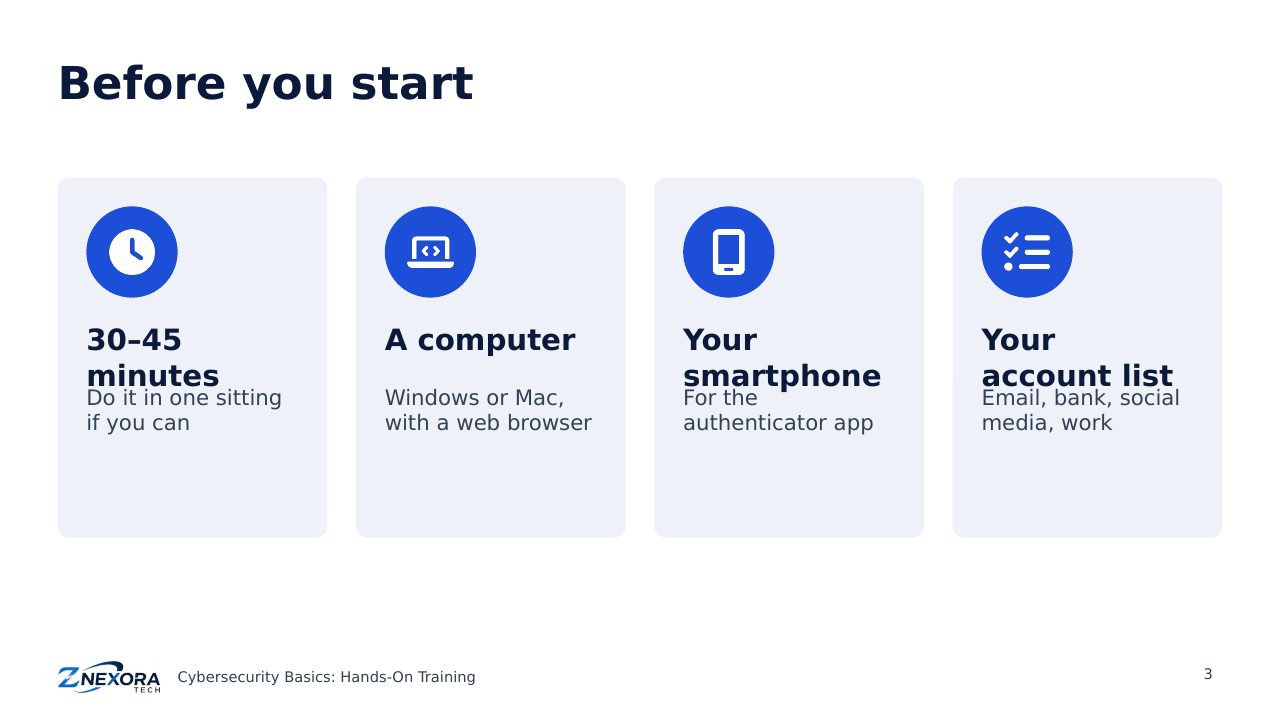
- Time: 30 to 45 minutes, ideally in one sitting.
- A computer (Windows or Mac) with a web browser.
- Your smartphone, for the authenticator app.
- A list of your key accounts: email, bank, payment apps, social media and work.
Step 1: Check if your email was in a breach
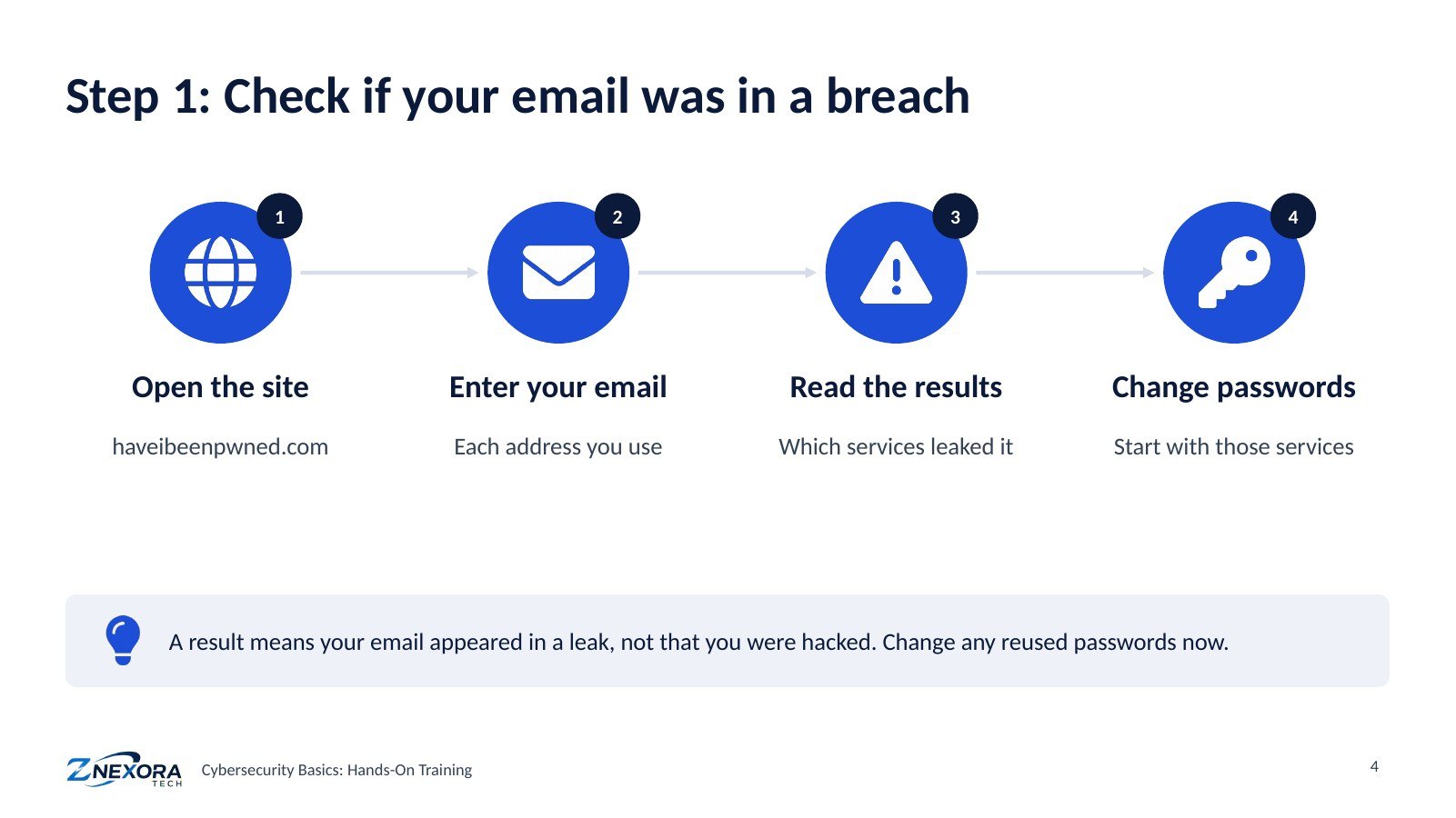
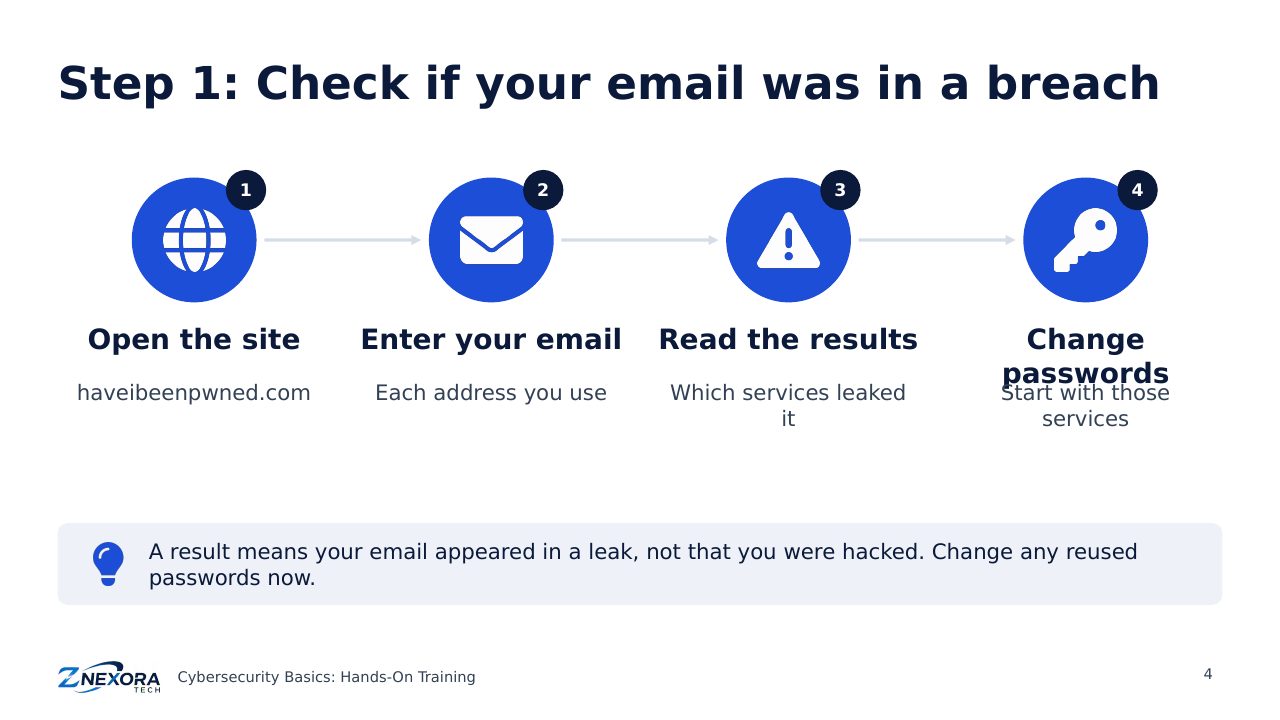
- Open haveibeenpwned.com, a free and widely trusted service.
- Enter each email address you use and search.
- Read the results: they list services where your address appeared in a data leak.
- Change your password on those services first, and anywhere you used the same password.
A result does not mean you were hacked. It means your address (and sometimes a password) was exposed in someone else’s data breach. The real danger is reusing passwords, because attackers try leaked passwords on other sites.
Step 2: Set up a password manager
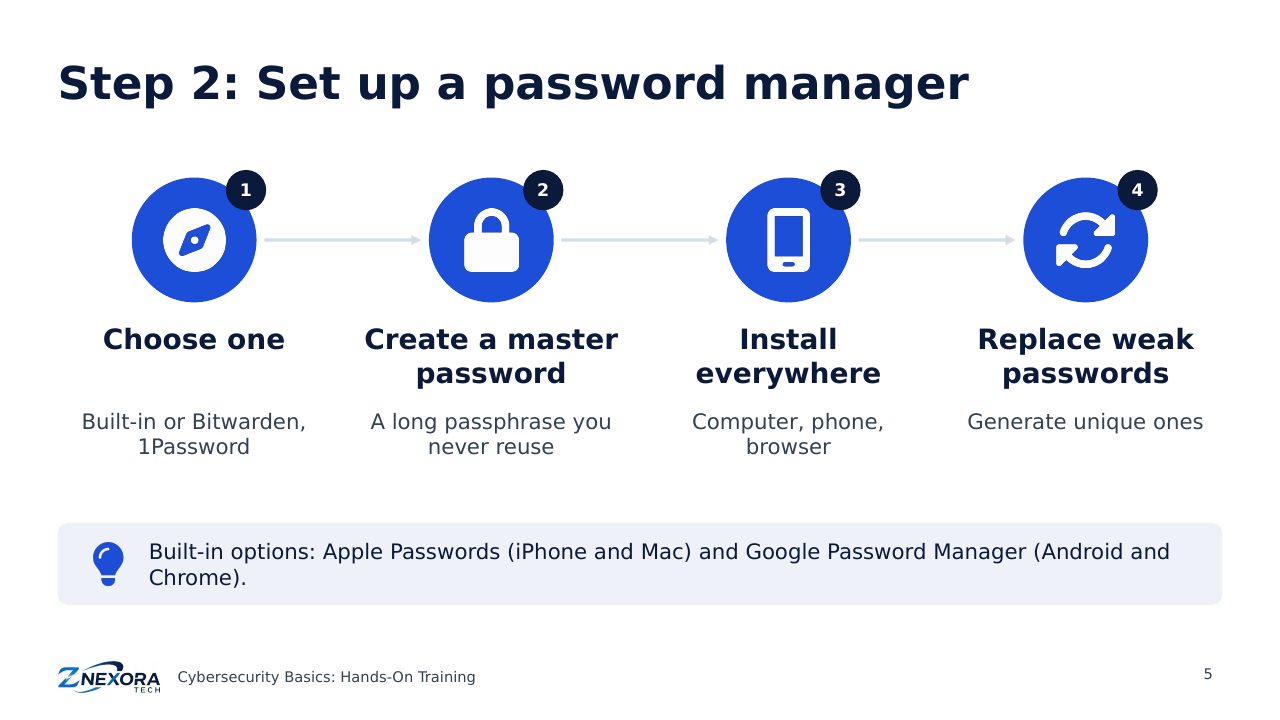
A password manager creates and remembers a different strong password for every account, so you only need to remember one master password.
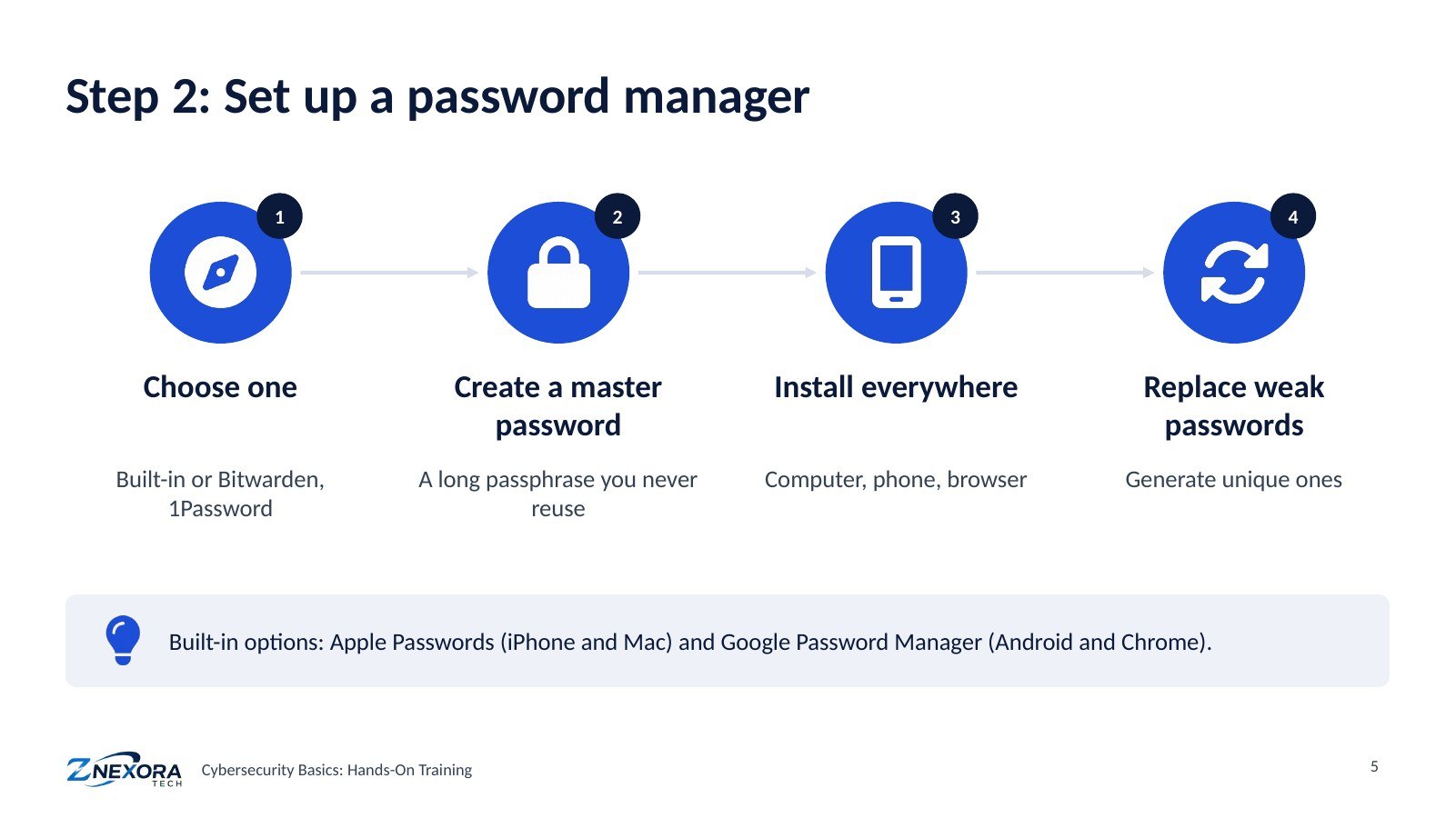
- Choose one. Built-in options are easy: Apple Passwords on iPhone and Mac, or Google Password Manager on Android and Chrome. Dedicated apps such as Bitwarden (with a free plan) or 1Password work across all devices.
- Create a master password: a long passphrase of four or more unrelated words, used nowhere else. For example: river-lantern-mango-87 (do not use this one).
- Install it everywhere: on your computer, your phone and as a browser extension.
- Replace weak passwords: for each important account, use the manager’s generator to create a new, unique password.
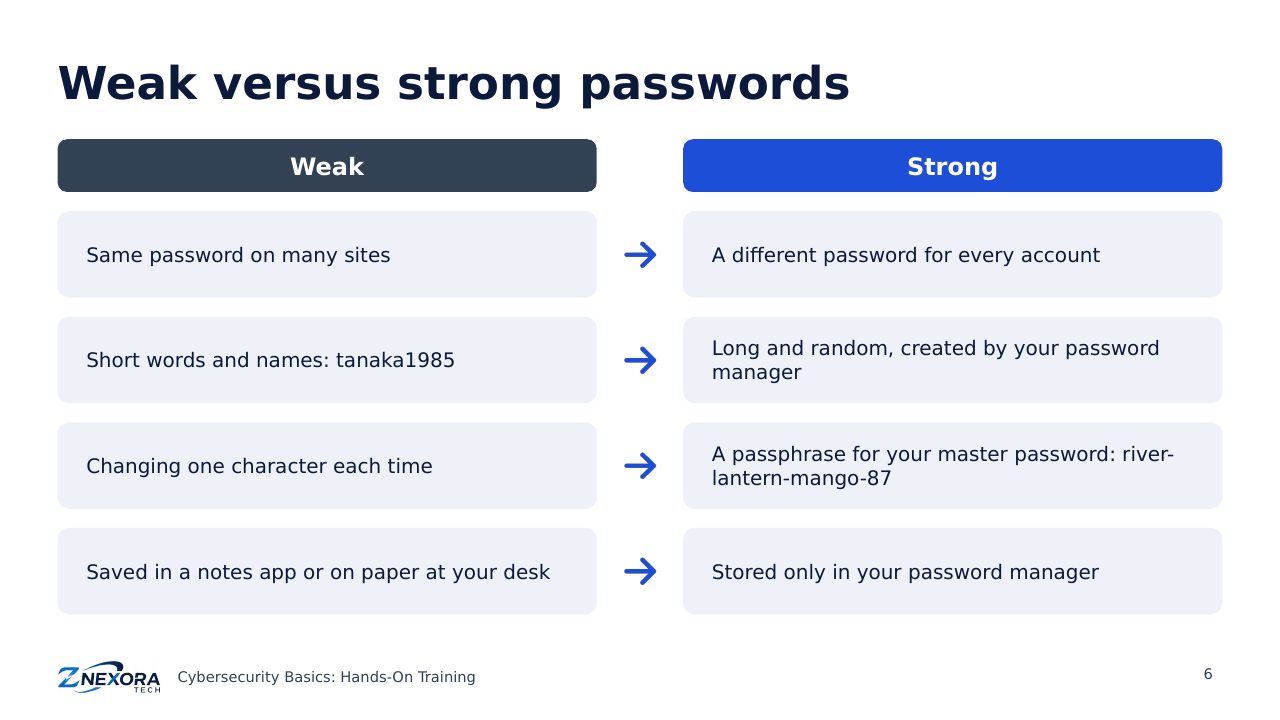
Weak versus strong passwords
- Weak: the same password on many sites, short words and names, or changing one character each time.
- Strong: a different, long, random password for every account, stored only in your password manager.
Step 3: Turn on multi-factor authentication
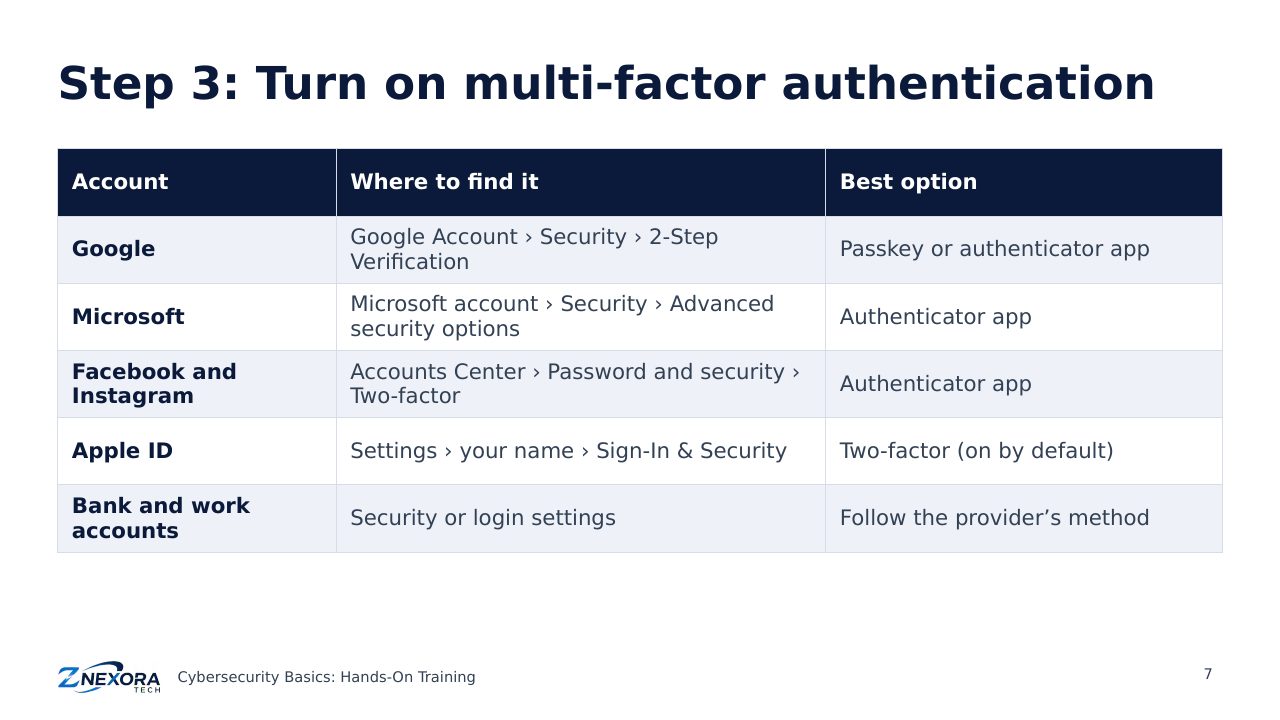
MFA adds a second check, such as a code or a passkey, so a stolen password alone is not enough. Turn it on in this order: email, bank and payment accounts, social media, then everything else. Menu names change over time, but you will usually find it here:
- Google: Google Account › Security › 2-Step Verification.
- Microsoft: Microsoft account › Security › Advanced security options.
- Facebook and Instagram: Accounts Center › Password and security › Two-factor authentication.
- Apple ID: Settings › your name › Sign-In & Security (two-factor is on by default).
- Banks and work accounts: the security or login settings; follow the provider’s method.
When you turn on MFA, the service usually offers backup codes. Print them or store them in your password manager, so you can still log in if you lose your phone.
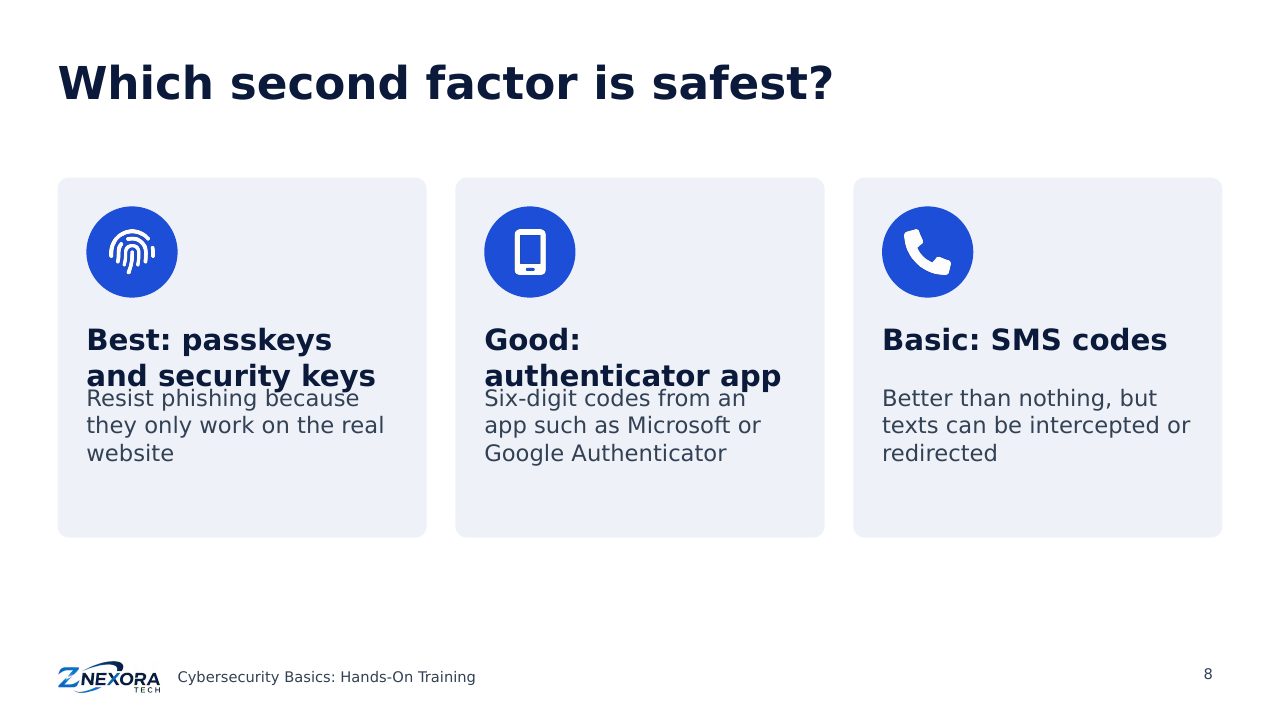
Which second factor is safest?
- Best: passkeys and security keys. They resist phishing because they only work on the real website.
- Good: an authenticator app such as Microsoft Authenticator or Google Authenticator.
- Basic: SMS codes. Better than nothing, but text messages can be intercepted or redirected.
Your checklist
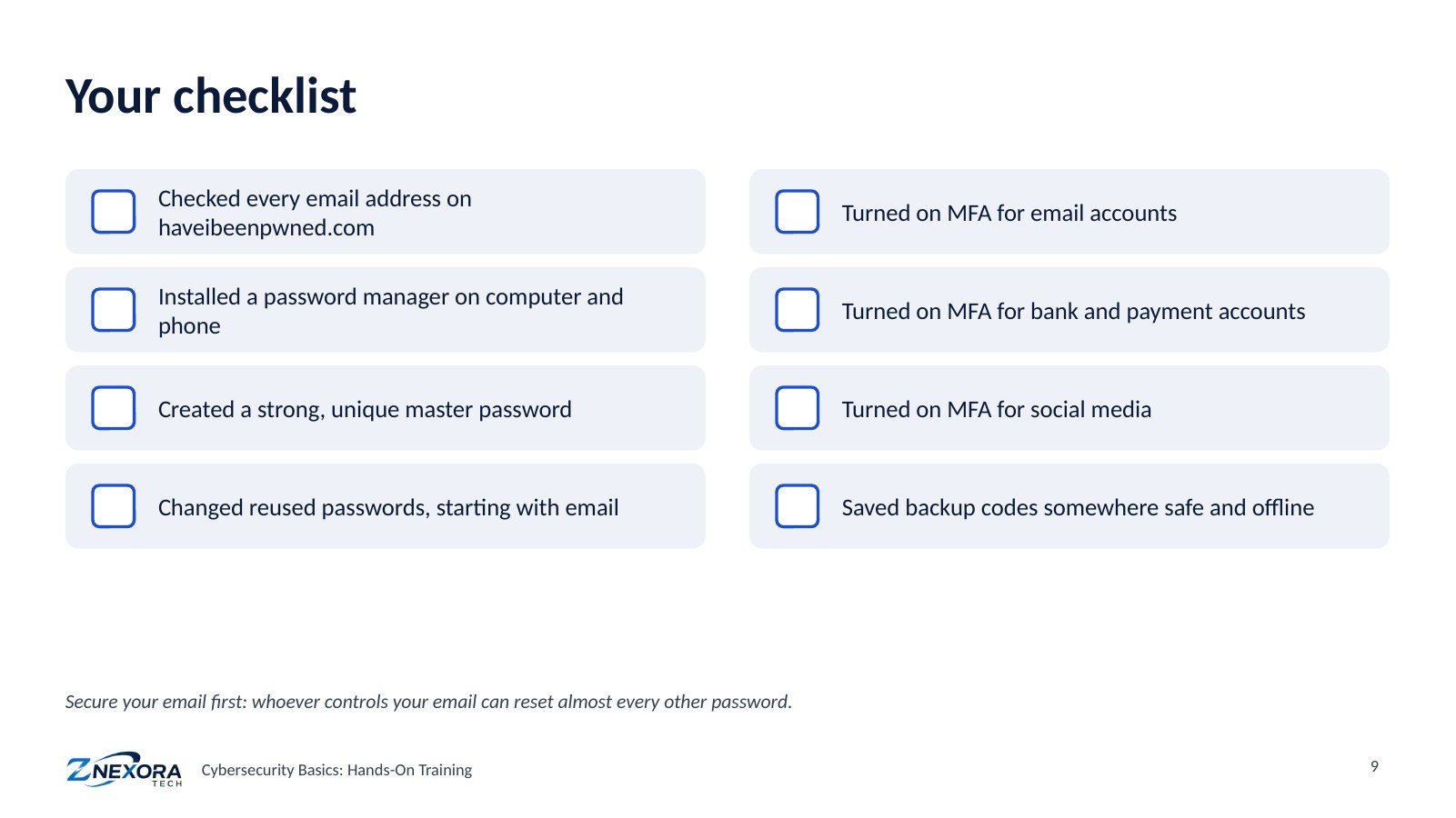
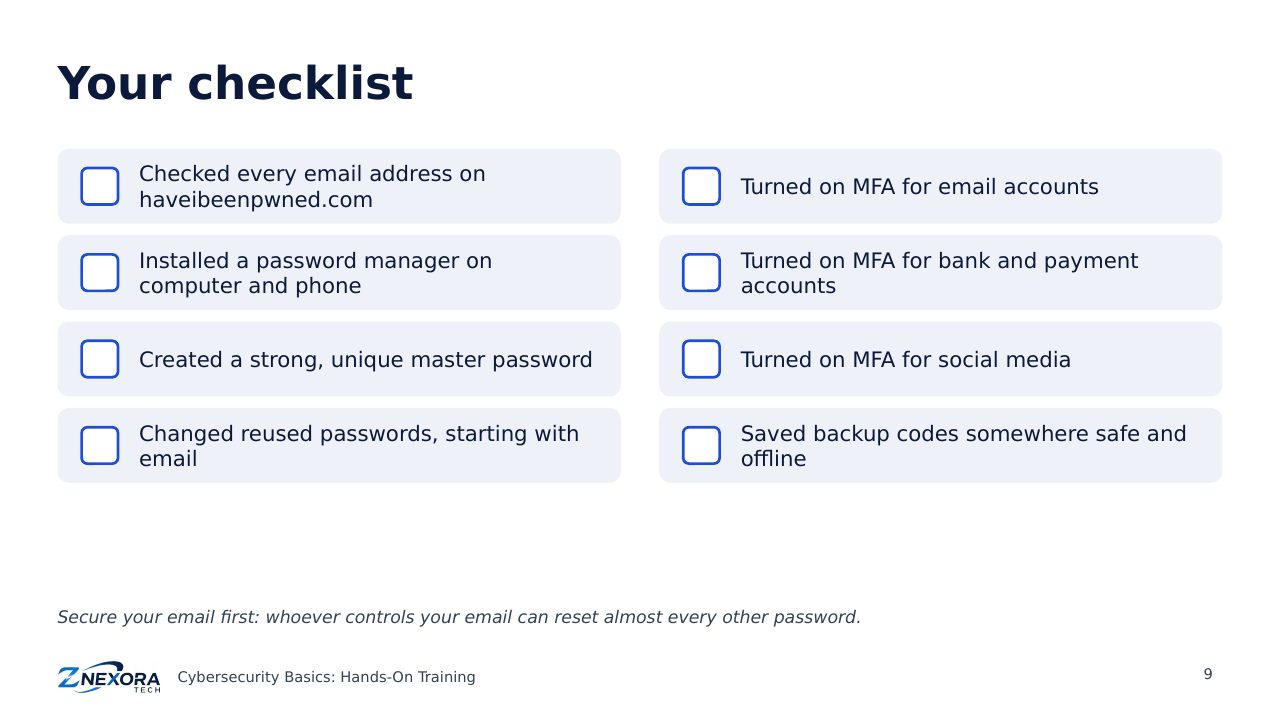
☐ Checked every email address on haveibeenpwned.com
☐ Installed a password manager on computer and phone
☐ Created a strong, unique master password
☐ Changed reused passwords, starting with email
☐ Turned on MFA for email accounts
☐ Turned on MFA for bank and payment accounts
☐ Turned on MFA for social media
☐ Saved backup codes somewhere safe and offline
Check your work
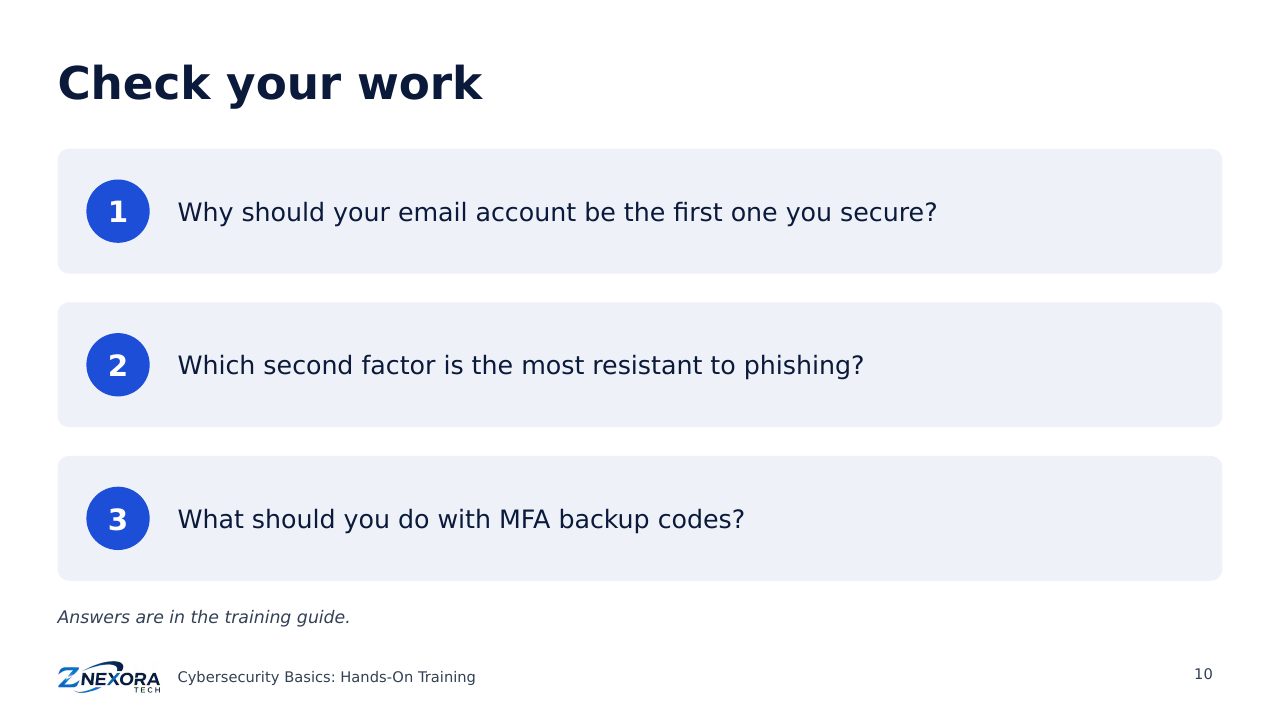
- Why should your email account be the first one you secure?
- Which second factor is the most resistant to phishing?
- What should you do with MFA backup codes?
Answers: 1. Whoever controls your email can reset almost every other password. 2. Passkeys or hardware security keys. 3. Store them safely offline or in your password manager, so you can log in if you lose your phone.
Next: Training 2 · Secure Your Devices. Updates, antivirus, encryption and screen locks on Windows, Mac, iPhone and Android.
Slides
Thank you for reading!
Let’s continue to build a safer and more trustworthy digital future together.
Follow ZNexora Tech
Stay curious. Stay secure. Stay ahead.